

Cách xây dựng cụm Slurm HPC trên một máy đơn
Trong phân tích dữ liệu quy mô lớn, việc sử dụng hệ thống hàng đợi job/phân tán là điều thiết yếu. Vì vậy, chúng ta cần một cơ chế cho phép người dùng truy cập tài nguyên của cụm và yêu cầu CPU, RAM, GPU phù hợp cho các tác vụ của họ. Nếu họ sử dụng bộ nhớ nhiều hơn mức đã yêu cầu, giải pháp đơn giản nhất là kill job. Điều này giúp tránh các vấn đề out-of-memory khiến máy bị treo. Slurm là thiết lập cụm phổ biến nhất, nhưng hiểu cách tạo một cụm Slurm không hề dễ dàng. Vì vậy, tôi đã tạo chuỗi blog này để hướng dẫn bạn thiết lập nó trên một máy đơn trước, rồi mở rộng sau đó và sử dụng nó một cách hiệu quả và tối ưu.
Đây là Phần 1 của chuỗi 3 phần, nơi chúng ta sẽ xây dựng một cụm Slurm hoàn chỉnh từ đầu. Trong bài viết đầu tiên này, chúng ta sẽ tìm hiểu các kiến thức nền tảng bằng cách thiết lập một cụm Slurm đơn node và hiểu các khái niệm cốt lõi.
Tổng quan chuỗi bài
- Phần 1 (bài này): Giới thiệu, kiến trúc và thiết lập đơn node
- Phần 2: Mở rộng lên production với Ansible
- Phần 3: Quản trị và các best practice
Tại sao chọn Slurm?
Khi nói đến lập lịch job trong môi trường HPC, có nhiều lựa chọn bao gồm PBS, Grid Engine và LSF của IBM. Tuy nhiên, Slurm (Simple Linux Utility for Resource Management) nổi bật vì một số lý do thuyết phục:
- Mã nguồn mở: Miễn phí sử dụng với một cộng đồng lớn và năng động
- Khả năng mở rộng: Được thiết kế để mở rộng từ các cụm nhỏ đến những siêu máy tính lớn nhất thế giới
- Tính linh hoạt: Kiểm soát chi tiết việc lập lịch job, phân bổ tài nguyên và thiết lập độ ưu tiên
- Khả năng tích hợp: Hoạt động liền mạch với MPI, các framework tính toán phân tán (Spark, Ray, Dask) và các công cụ giám sát
- Hiệu năng: Được tối ưu cho thông lượng cao với chi phí overhead tối thiểu
Tìm hiểu kiến trúc Slurm
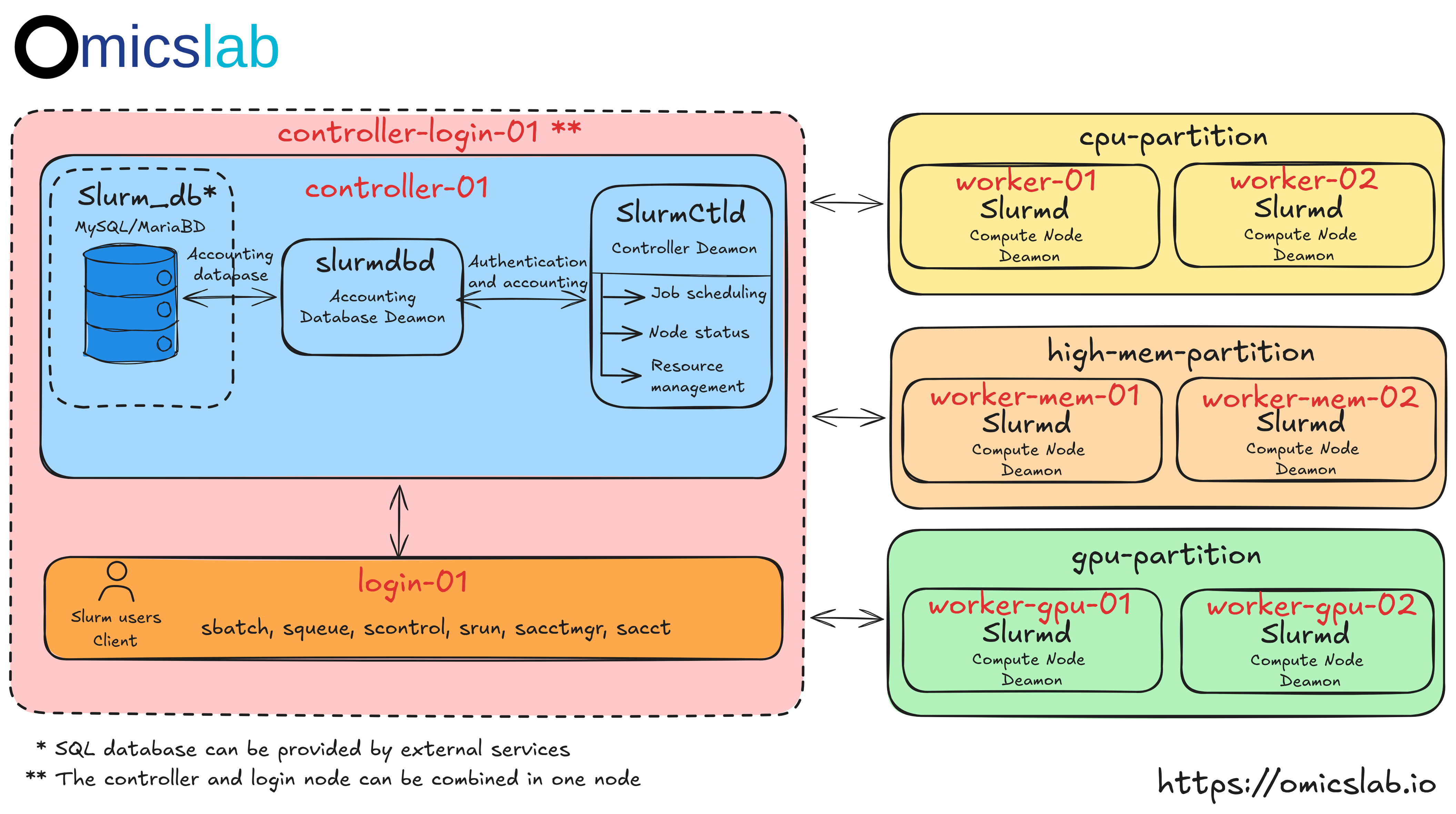
Hình 1: Kiến trúc chuẩn của một cụm Slurm đa node
Các node cốt lõi
Chức năng chính của Slurm hay bất kỳ cụm nào là kết nối các máy tính với số lượng lớn CPU, bộ nhớ và GPU. Nó có một hệ thống quản lý nơi người dùng có thể yêu cầu tài nguyên tính toán (ví dụ 16 core, 32GB RAM). Hệ thống tìm các máy tính còn khả dụng và phân bổ tài nguyên cho người dùng. Vậy làm thế nào chúng ta có thể thiết kế một hệ thống làm được điều này ở mức tổng quan?
Chúng ta có thể chia thành 3 loại máy: login node, controller node và compute node:
Controller node: Chúng đóng vai trò bộ điều khiển, nhận yêu cầu từ người dùng, phân bổ và quản lý tài nguyên. Ngoài ra, việc cấu hình chúng cùng một database (SQL database) để lưu thông tin kế toán là một thực hành tốt. Điều này giúp theo dõi ai đã chạy job, họ đã sử dụng tài nguyên tính toán như thế nào, v.v.
Login node: Chúng đóng vai trò cổng vào, thường được truy cập qua mạng công cộng. Người dùng có thể SSH để đăng nhập vào máy và yêu cầu tài nguyên tính toán. Login node gửi yêu cầu đến controller để quyết định xem có tài nguyên tính toán khả dụng hay không. Sau đó nó phân bổ tài nguyên hoặc yêu cầu người dùng chờ. Thông thường, nếu không có sự cho phép của controller, người dùng không thể "đứng" trên các compute node — nơi thực sự chứa tài nguyên lớn.
Compute node: Đơn giản là có tài nguyên lớn và kết nối với controller để chờ được phân bổ.
Các thành phần cốt lõi
Từ phần trước và Hình 1, giờ chúng ta có thể xác định các dịch vụ (phần mềm) liên quan giúp cụm kết nối với nhau và hoạt động đúng cách
slurmctld (Controller Daemon): Bộ não của cụm, chạy trên controller node. Nó xử lý việc lập lịch job, theo dõi tài nguyên và giao tiếp với các compute node.
slurmd (Node Daemon): Chạy trên các compute node để thực thi job và báo cáo trạng thái về controller.
slurmdbd (Database Daemon): Không bắt buộc nhưng được khuyến nghị để lưu dữ liệu kế toán job, theo dõi mức sử dụng tài nguyên và lập lịch fair-share.
| Loại node | Dịch vụ | Mục đích |
|---|---|---|
| Login | Slurm clients | Điểm truy cập của người dùng để submit job |
| Controller | slurmctld | Quản lý lập lịch job và tài nguyên |
| Compute | slurmd | Thực thi các job được submit |
| Database | slurmdbd, MySQL/MariaDB | Lưu dữ liệu kế toán |
- Với các cụm nhỏ đến trung bình, login node và controller thường được cấu hình trên cùng một máy, trong khi các compute node nên độc lập
- Khi gộp tất cả dịch vụ trên một máy, vấn đề then chốt là người dùng có thể bỏ qua dịch vụ Slurm và sử dụng tài nguyên tính toán trực tiếp
- Để hiểu sâu hơn về kiến trúc Slurm, hãy xem tài liệu Slurm của chúng tôi.
Tất cả trong một - Thiết lập đơn node
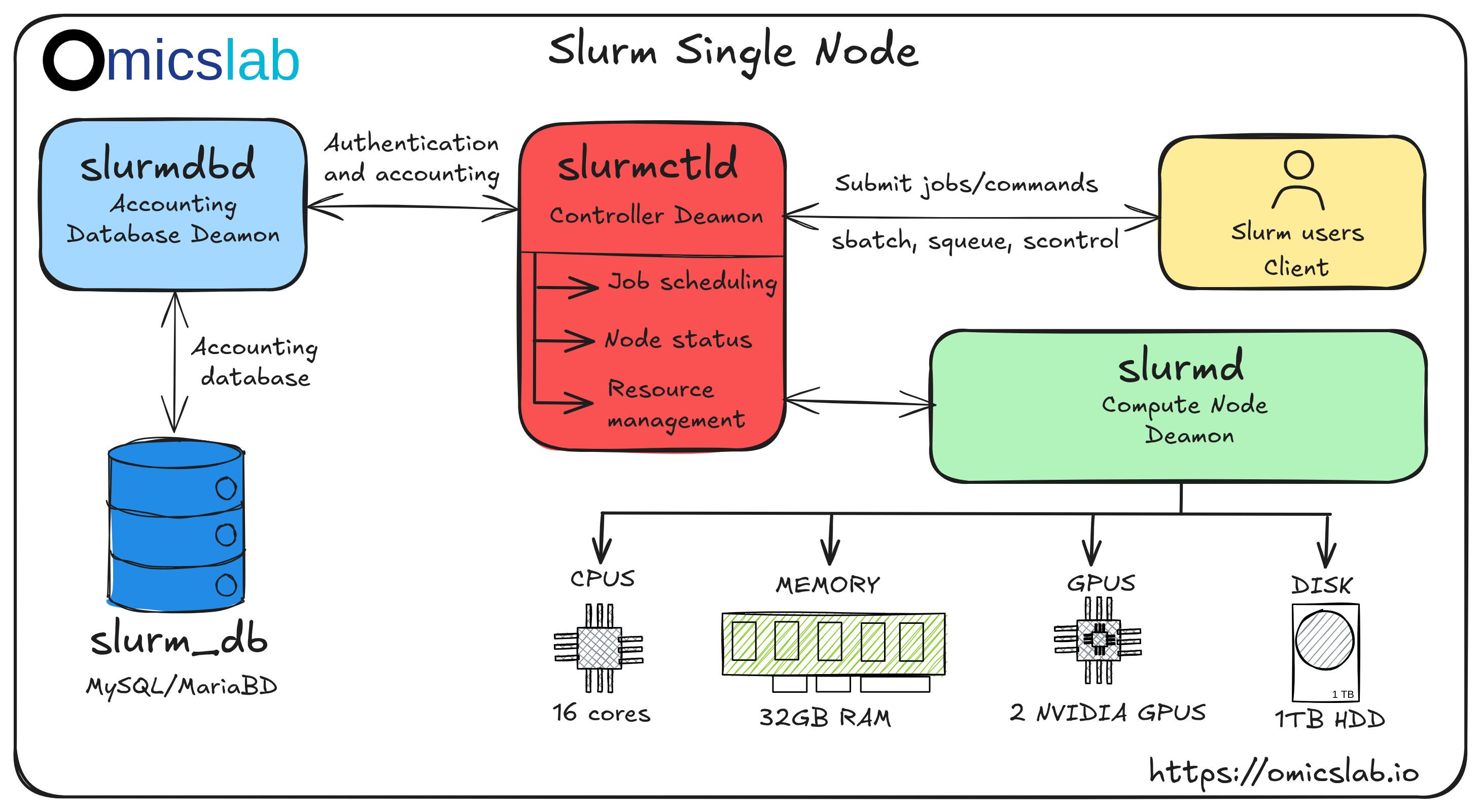
Hình 2: Kiến trúc cụm Slurm đơn node
Bắt đầu với thiết lập đơn node giúp bạn hiểu cách Slurm hoạt động trước khi mở rộng. Cách tiếp cận này rất phù hợp để học tập và phát triển cục bộ. Với nhu cầu cá nhân, bạn có thể cấu hình nó để dùng Slurm cho việc phân bổ tài nguyên. Theo Hình 2, giờ chúng ta sẽ cài đặt mọi thứ trên một máy duy nhất.
- Thiết lập này chạy trên Ubuntu 20.04 và bao gồm tất cả các tính năng tiêu chuẩn của Slurm. Lưu ý rằng cấu hình này chỉ nhằm mục đích học tập - với môi trường production, bạn sẽ cần thiết lập đa node được trình bày ở Phần 2.
- Thay vì yêu cầu người dùng phải biết về việc submit job, họ có thể sử dụng tài nguyên trực tiếp. Mua một máy nhỏ làm controller khá rẻ và cũng giảm công sức cần thiết để quản lý một máy trạm đơn lẻ.
Máy ảo và Docker
Để thiết lập thủ công cụm Slurm đơn node, thay vì dùng máy tính của chính bạn, tốt hơn là dùng máy ảo hoặc Docker:
Vagrant:
- Để thiết lập máy ảo, cài đặt Vagrant: https://developer.hashicorp.com/vagrant
- Cấu hình máy ảo mới: https://developer.hashicorp.com/vagrant/tutorials/networking-provisioning-operations/getting-started-provisioning
- Để tái hiện hướng dẫn này, hãy đổi box của máy ảo thành "alvistack/ubuntu-20.04"
Docker:
- Cài đặt Docker: https://docs.docker.com/engine/install
- Tạo container với base image:
ubuntu:20.04 - Với Docker, bạn là root user, nên bạn không cần dùng
sudođể chạy lệnh
Cài đặt các dependency của Slurm
Đầu tiên, cài đặt các thành phần Slurm cần thiết:
sudo apt-get update -y && sudo apt-get install -y slurmd slurmctldXác minh cài đặt:
# Locate slurmd and slurmctldwhich slurmdwhich slurmctld# Output: /usr/sbin/slurmctldCấu hình slurm.conf
Tệp slurm.conf là trái tim trong cấu hình Slurm của bạn. Tệp này phải giống hệt nhau trên tất cả các node trong một cụm (nhưng hiện tại, chúng ta chỉ có một node).
Tạo slurm.conf của bạn:
cat <<EOF > slurm.conf# slurm.conf for a single-node Slurm clusterClusterName=localclusterSlurmctldHost=localhostMpiDefault=noneProctrackType=proctrack/linuxprocReturnToService=2SlurmctldPidFile=/run/slurmctld.pidSlurmctldPort=6817SlurmdPidFile=/run/slurmd.pidSlurmdPort=6818SlurmdSpoolDir=/var/lib/slurm-llnl/slurmdSlurmUser=slurmStateSaveLocation=/var/lib/slurm-llnl/slurmctldSwitchType=switch/noneTaskPlugin=task/none
# TIMERSInactiveLimit=0KillWait=30MinJobAge=300SlurmctldTimeout=120SlurmdTimeout=300Waittime=0
# SCHEDULINGSchedulerType=sched/backfillSelectType=select/cons_tresSelectTypeParameters=CR_Core
# ACCOUNTING (not enabled yet)AccountingStorageType=accounting_storage/noneJobAcctGatherType=jobacct_gather/noneJobAcctGatherFrequency=30
# LOGGINGSlurmctldDebug=infoSlurmctldLogFile=/var/log/slurm-llnl/slurmctld.logSlurmdDebug=infoSlurmdLogFile=/var/log/slurm-llnl/slurmd.log
# COMPUTE NODES (adjust CPUs and RealMemory to match your system)NodeName=localhost CPUs=2 Sockets=1 CoresPerSocket=2 ThreadsPerCore=1 RealMemory=1024 State=UNKNOWN
# PARTITION CONFIGURATIONPartitionName=LocalQ Nodes=ALL Default=YES MaxTime=INFINITE State=UPEOF
sudo mv slurm.conf /etc/slurm-llnl/slurm.confKhởi động các dịch vụ
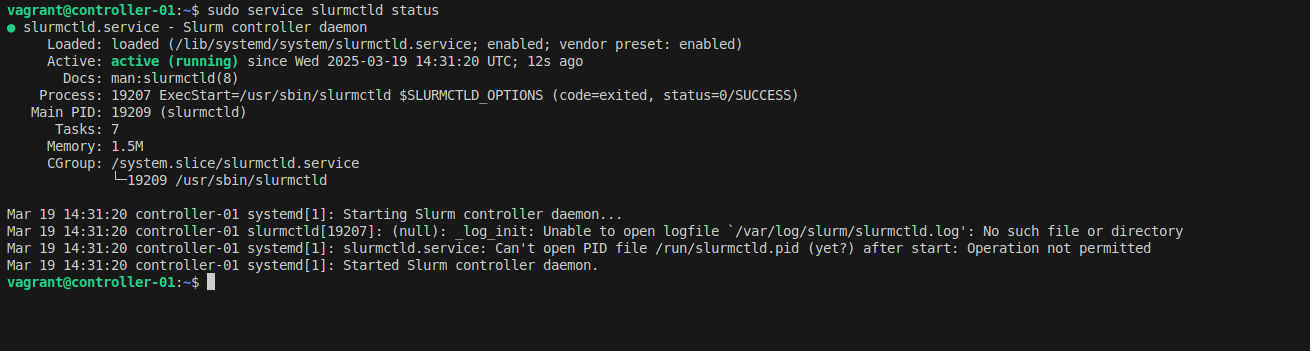
Khởi động các daemon của Slurm:
# Start slurmd (compute daemon)sudo service slurmd startsudo service slurmd status
# Start slurmctld (controller daemon)sudo service slurmctld startsudo service slurmctld status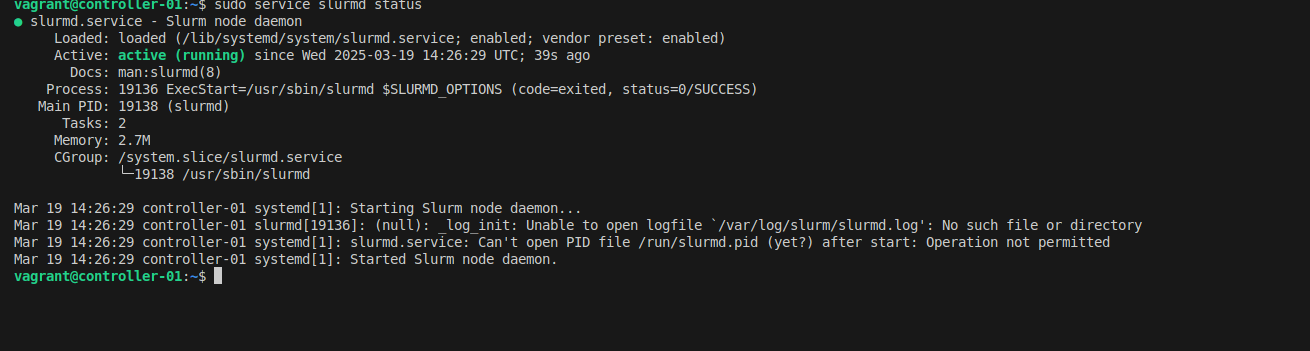
Kiểm tra thiết lập của bạn bằng cách submit một job tương tác đơn giản:
srun --mem 500MB -c 1 --pty bash
# Check job detailssqueue -o "%i %P %u %T %M %l %D %C %m %R %Z %N" | column -tBật giới hạn tài nguyên với cgroups
Nếu không cấu hình cgroup đúng cách, các job có thể vượt quá tài nguyên được cấp, có khả năng gây mất ổn định hoặc crash hệ thống. Bộ lập lịch job sẽ chấp nhận các giới hạn tài nguyên, nhưng sẽ không thực sự thực thi chúng.
Hãy thử vấn đề này trước. Submit một job yêu cầu 500MB và thử cấp phát nhiều hơn hẳn:
srun --mem 500MB -c 1 --pty bash
# Try to allocate 1GB of memory (exceeding the 500MB limit)declare -a memi=0while :; do mem[$i]=$(head -c 100M </dev/zero | tr '\000' 'x') ((i++)) echo "Allocated: $((i * 100)) MB"doneTrước khi submit job, mức sử dụng bộ nhớ dưới 200MB:

Sau khi cấp phát 1GB, job không bị kill do thiếu cấu hình control group (cgroup):

Bạn sẽ nhận thấy job vẫn tiếp tục chạy ngay cả khi đã vượt 500MB - đó chính là vấn đề!
Giờ hãy sửa nó bằng cgroups:
cat <<EOF > cgroup.confCgroupAutomount=yesCgroupMountpoint=/sys/fs/cgroupConstrainCores=yesConstrainRAMSpace=yesConstrainDevices=yesConstrainSwapSpace=yesMaxSwapPercent=5MemorySwappiness=0EOF
sudo mv cgroup.conf /etc/slurm-llnl/cgroup.confCập nhật slurm.conf để dùng các plugin cgroup:
sudo sed -i -e "s|ProctrackType=proctrack/linuxproc|ProctrackType=proctrack/cgroup|" \ -e "s|TaskPlugin=task/none|TaskPlugin=task/cgroup|" /etc/slurm-llnl/slurm.confBật cgroup trong GRUB và reboot:
sudo sed -i 's/^GRUB_CMDLINE_LINUX="/GRUB_CMDLINE_LINUX="cgroup_enable=memory swapaccount=1 /' /etc/default/grubsudo update-grubsudo rebootSau khi reboot, khởi động lại các dịch vụ Slurm:
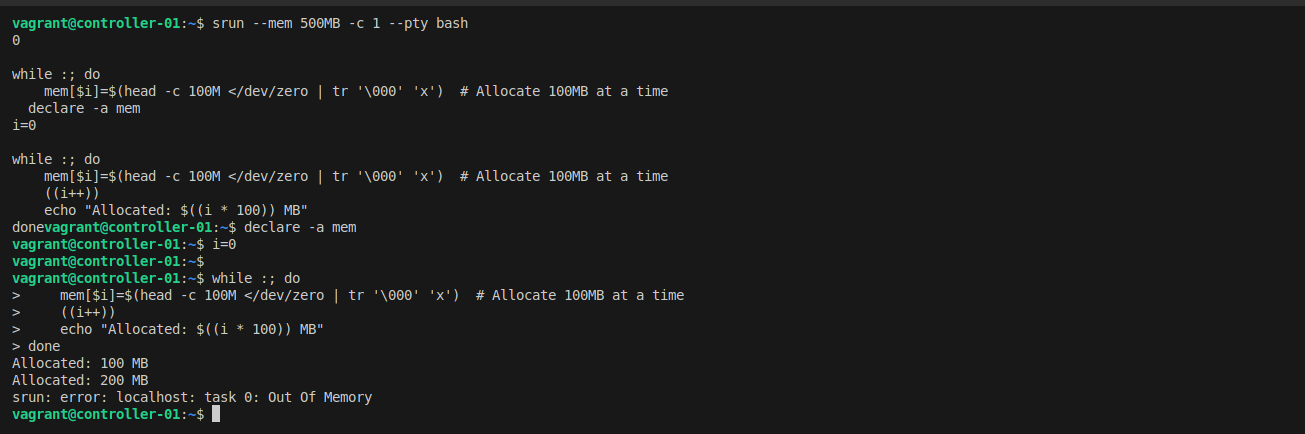
sudo service slurmctld restartsudo service slurmd restartGiờ hãy kiểm tra lại với cùng script cấp phát bộ nhớ - lần này, job sẽ bị kill khi vượt quá giới hạn!
Bật kế toán (Accounting)
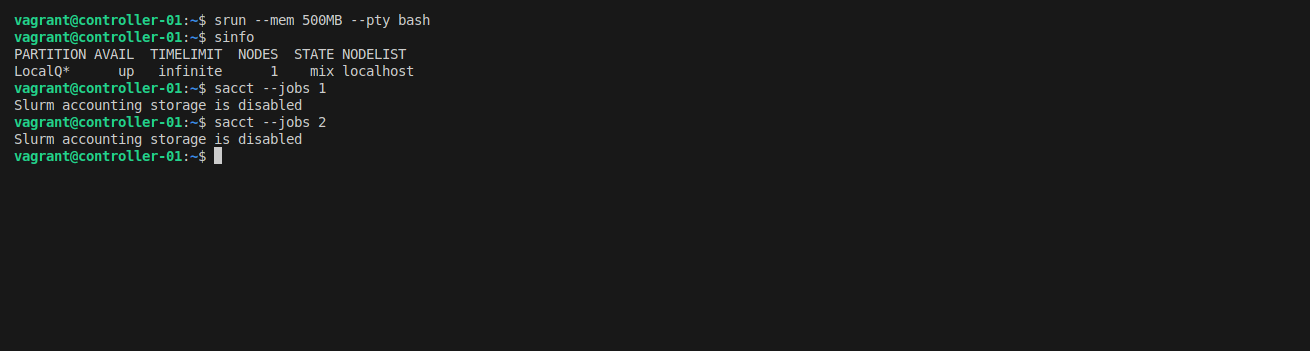
Kế toán job là thiết yếu để:
- Theo dõi ai đang sử dụng tài nguyên
- Giám sát việc hoàn thành và thất bại của job
- Thực thi giới hạn tài nguyên theo người dùng/nhóm
- Lập lịch fair-share
Cài đặt các package cần thiết:
sudo apt-get install slurmdbd mariadb-server -yTạo database và user:
sudo service mysql start
sudo mysql -e "CREATE DATABASE slurm_acct_db;"sudo mysql -e "CREATE USER 'slurm'@'localhost' IDENTIFIED BY 'slurm';"sudo mysql -e "GRANT ALL PRIVILEGES ON slurm_acct_db.* TO 'slurm'@'localhost';"sudo mysql -e "FLUSH PRIVILEGES;"Xác minh database đã được tạo:
sudo mysql -e "SHOW DATABASES;"sudo mysql -e "SELECT User, Host FROM mysql.user;"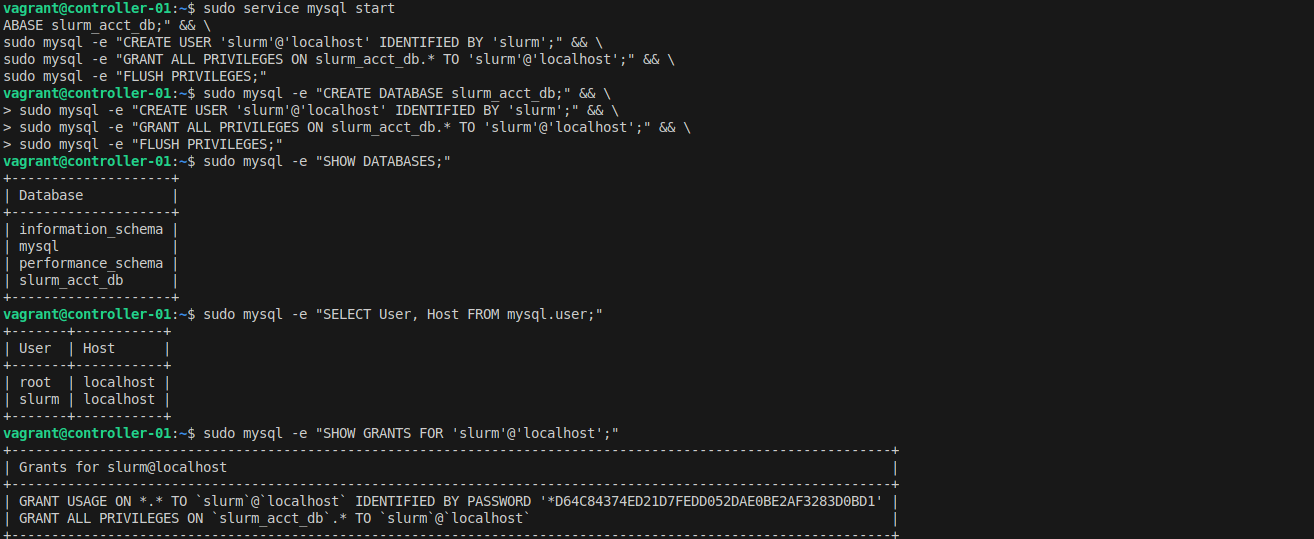
Cấu hình slurmdbd:
cat <<EOF > slurmdbd.confPidFile=/run/slurmdbd.pidLogFile=/var/log/slurm/slurmdbd.logDebugLevel=errorDbdHost=localhostDbdPort=6819
# DB connection dataStorageType=accounting_storage/mysqlStorageHost=localhostStoragePort=3306StorageUser=slurmStoragePass=slurmStorageLoc=slurm_acct_dbSlurmUser=slurmEOF
sudo mv slurmdbd.conf /etc/slurm-llnl/slurmdbd.confsudo service slurmdbd startCập nhật slurm.conf để bật accounting:
sudo sed -i -e "s|AccountingStorageType=accounting_storage/none|AccountingStorageType=accounting_storage/slurmdbd\nAccountingStorageEnforce=associations,limits,qos\nAccountingStorageHost=localhost\nAccountingStoragePort=6819|" /etc/slurm-llnl/slurm.conf
sudo sed -i -e "s|JobAcctGatherType=jobacct_gather/none|JobAcctGatherType=jobacct_gather/cgroup|" /etc/slurm-llnl/slurm.conf
sudo systemctl restart slurmctld slurmdThêm cluster và user của bạn vào accounting:
# Add clustersudo sacctmgr -i add cluster localcluster
# Add account for your usersudo sacctmgr -i add account $USER Cluster=localcluster
# Add your user to the accountsudo sacctmgr -i add user $USER account=$USER DefaultAccount=$USER
sudo systemctl restart slurmctld slurmd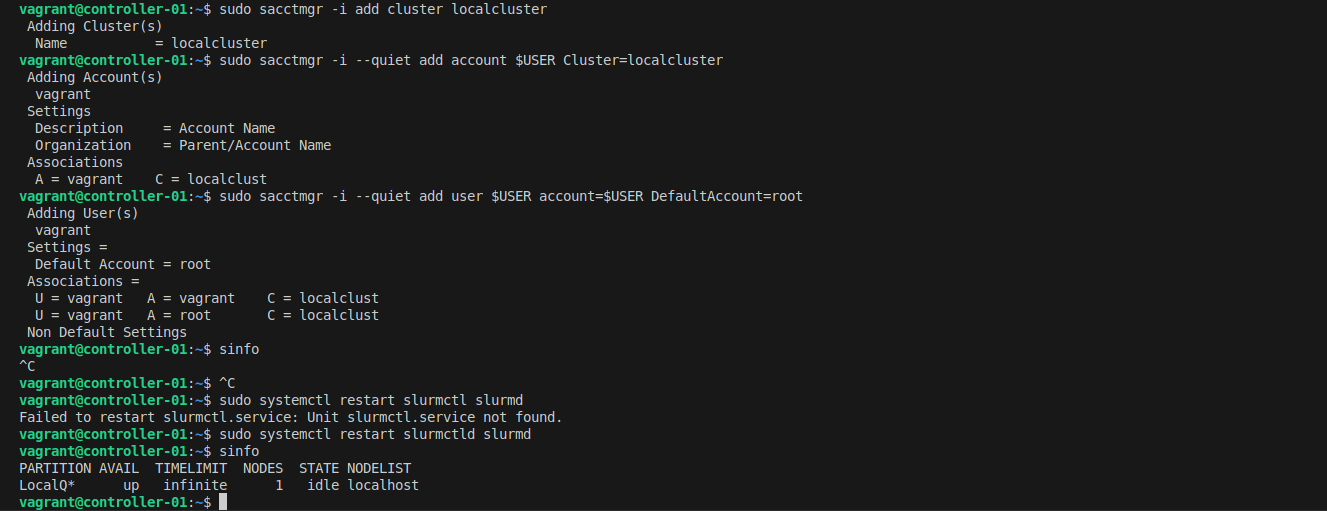
Giờ hãy kiểm tra accounting bằng cách submit một job và xem chi tiết của nó:
# Submit a test jobsrun --mem 500MB -c 1 hostname
# View accounting informationsacct
Những điểm chính
Trong phần đầu tiên của chuỗi bài, chúng ta đã đề cập:
- Tại sao chọn Slurm: Hiểu các ưu điểm của Slurm so với các lựa chọn thay thế
- Kiến trúc: Các thành phần cốt lõi (slurmctld, slurmd, slurmdbd) và vai trò của chúng
- Thiết lập cơ bản: Cài đặt và cấu hình một cụm đơn node
- cgroups quan trọng: Tại sao giới hạn tài nguyên là thiết yếu (và cách bật nó)
- Accounting: Thiết lập theo dõi job và giám sát tài nguyên
Tiếp theo là gì? Trong Phần 2, chúng ta sẽ lấy kiến thức này và mở rộng thành một cụm production đa node sử dụng tự động hóa với Ansible. Chúng ta sẽ thêm giám sát với Grafana, cảnh báo qua Slack và lưu trữ chia sẻ với NFS.
Tài liệu tham khảo
1.Slurm Overview — Tài liệu chính thức cho Slurm workload manager
2.NVIDIA/deepops — Bộ công cụ triển khai cụm mã nguồn mở (giấy phép BSD-3-Clause)
3.elasticluster — Công cụ cung cấp cụm đàn hồi (giấy phép GPL-3.0)
Đây là Phần 1 của chuỗi Omicslab về xây dựng cụm Slurm HPC. Tiếp tục đến Phần 2 để tìm hiểu về triển khai production với Ansible.
Bài viết gần đây

28 tháng 09, 2026
Hướng dẫn xây dựng bộ genome vi khuẩn không cần lập trình




4 tháng 05, 2026
Pipeline phân tích methyl hóa từ dữ liệu đọc ngắn với Nextflow
3 tháng 05, 2026