

Quản trị cụm Slurm HPC và các thực hành tốt nhất
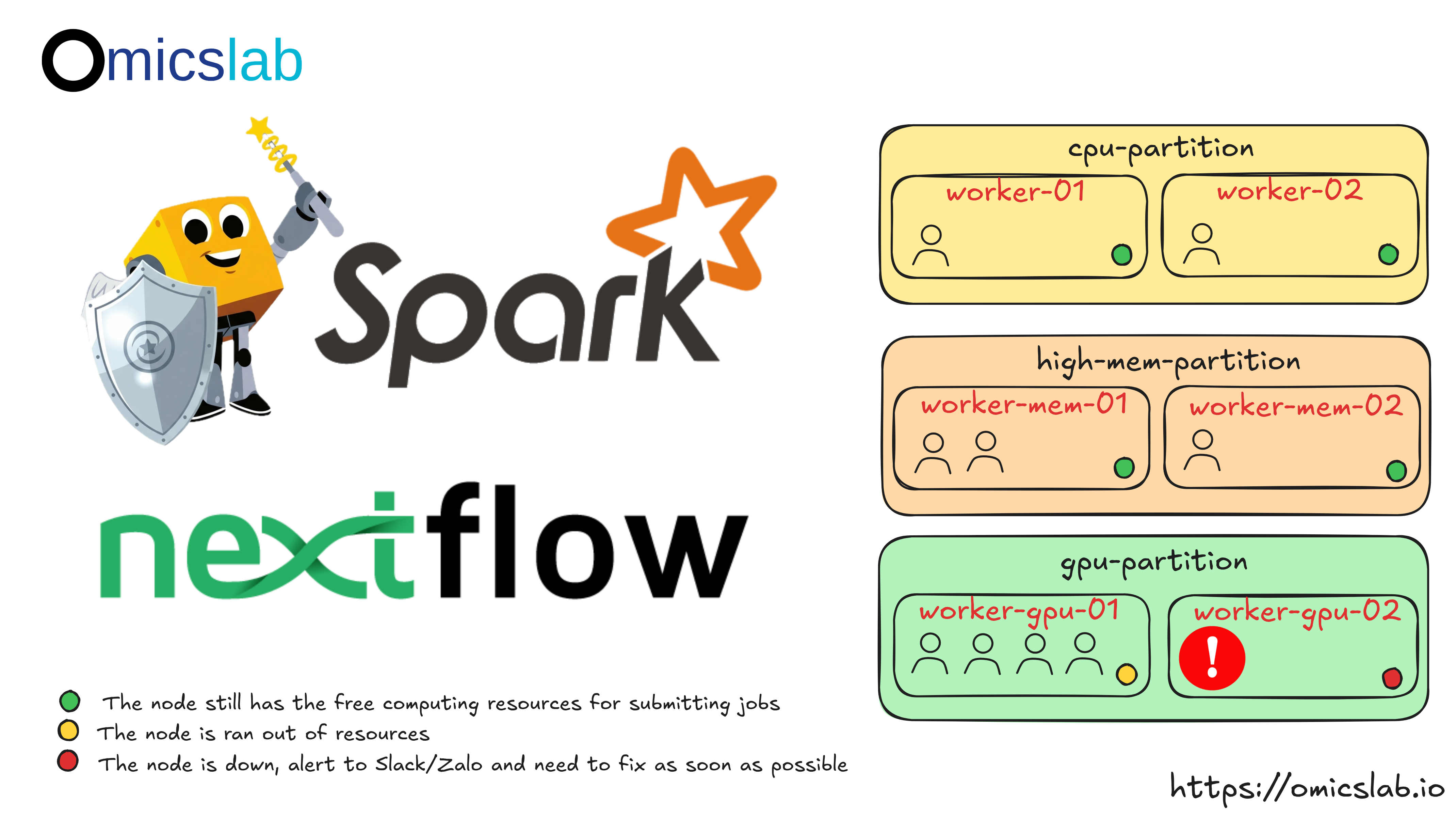
Ở Phần 1 và Phần 2, chúng ta đã xây dựng một cụm Slurm HPC hoàn chỉnh từ một node duy nhất đến một hệ thống đa node sẵn sàng cho production. Bây giờ hãy cùng tìm hiểu cách quản lý, bảo trì và bảo mật cụm này một cách hiệu quả.
Bài viết cuối cùng này bao quát các tác vụ quản trị hằng ngày, xử lý sự cố, tăng cường bảo mật và tích hợp với các framework xử lý dữ liệu.
Tổng quan series
- Phần 1: Giới thiệu, kiến trúc và thiết lập một node đơn
- Phần 2: Mở rộng lên production với Ansible
- Phần 3 (bài viết này): Quản trị và các thực hành tốt nhất
Tổng quan về quản trị
Quản lý một cụm Slurm bao gồm một số lĩnh vực chính:
- Quản lý cụm: Xây dựng, bảo trì và cập nhật cụm thông qua Ansible
- Quản lý người dùng: Đồng bộ người dùng trên các node với quyền hạn phù hợp
- Bảo mật đăng nhập: Tăng cường SSH với 2FA hoặc cặp khóa
- Quản lý tài nguyên: Áp đặt giới hạn và chính sách fair-share
- Giám sát: Theo dõi hiệu năng và mức sử dụng tài nguyên
- Xử lý sự cố: Chẩn đoán và giải quyết vấn đề
Quản lý người dùng và tài nguyên
Thêm người dùng và nhóm
Slurm sử dụng account (nhóm) để tổ chức người dùng và áp dụng các chính sách tài nguyên:
# Add a new account/groupsacctmgr add account research_team Description="Research Team"
# Add a user to an accountsacctmgr add user john account=research_team
# Add user with multiple accountssacctmgr add user alice account=research_team,dev_team DefaultAccount=research_team
# View accountssacctmgr show account
# View userssacctmgr show userThiết lập giới hạn tài nguyên
Giới hạn ở cấp account
Kiểm soát tài nguyên cho toàn bộ nhóm:
# Limit CPU minutes (prevents monopolizing cluster)sacctmgr modify account research_team set GrpCPUMins=100000
# Limit memory (in MB)sacctmgr modify account research_team set GrpMem=500000
# Limit concurrent jobssacctmgr modify account research_team set GrpJobs=50
# Limit concurrent running jobssacctmgr modify account research_team set GrpJobsRun=20
# Limit number of nodessacctmgr modify account research_team set GrpNodes=10Giới hạn ở cấp người dùng
Kiểm soát hành vi của từng người dùng:
# Limit jobs in queuesacctmgr modify user john set MaxJobs=10
# Limit running jobssacctmgr modify user john set MaxJobsRun=5
# Limit wall time (in minutes)sacctmgr modify user john set MaxWall=1440 # 24 hours
# Limit CPUs per jobsacctmgr modify user john set MaxCPUs=32
# View user limitssacctmgr show user john withassoc format=user,account,maxjobs,maxsubmit,maxwallQuality of Service (QoS)
QoS cho phép bạn tạo các tầng dịch vụ với mức ưu tiên khác nhau:
# Create QoS levelssacctmgr add qos normal priority=100sacctmgr add qos high priority=500 MaxWall=2-00:00:00 MaxJobs=5sacctmgr add qos low priority=50
# Assign QoS to accountsacctmgr modify account research_team set qos=normal,high
# Users can specify QoS when submittingsbatch --qos=high job_script.shLập lịch fair-share
Đảm bảo phân phối tài nguyên một cách công bằng:
# Set fair-share values (higher = more priority)sacctmgr modify account research_team set fairshare=100sacctmgr modify account dev_team set fairshare=50
# View fair-share treesshare -a
# View detailed fair-share infosshare -A research_team --allQuản lý node
Kiểm tra trạng thái node
# View all nodessinfo
# Detailed node informationsinfo -Nel
# Show node statessinfo -N -o "%N %T %C %m %e %f"
# View specific node detailsscontrol show node worker-01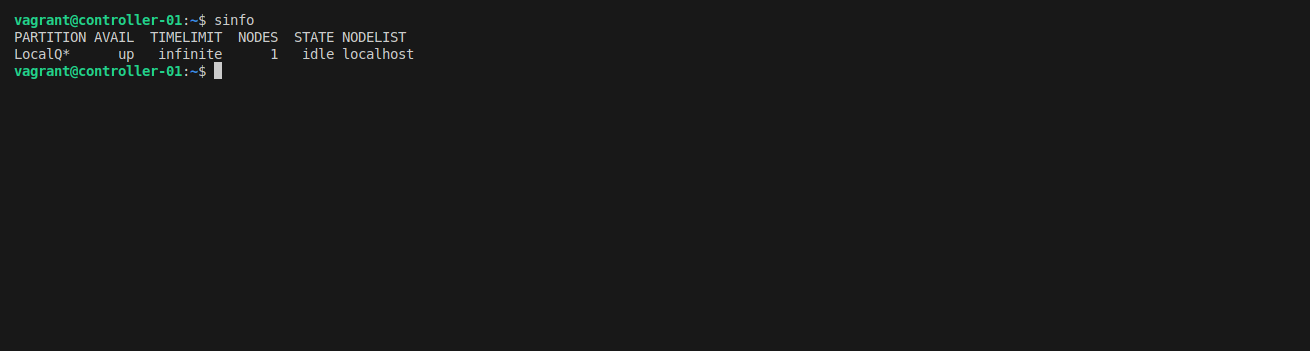
Các trạng thái node bạn sẽ gặp:
- IDLE: Sẵn sàng nhận job
- ALLOCATED: Đang chạy job
- MIXED: Được cấp phát một phần
- DRAIN: Không nhận job mới (đang drain)
- DRAINED: Đã drain hoàn toàn
- DOWN: Không phản hồi
Bảo trì node
Drain một node
Khi bạn cần thực hiện bảo trì:
# Drain node (won't accept new jobs, allows running jobs to finish)scontrol update NodeName=worker-01 State=drain Reason="Hardware upgrade"
# Force drain (terminate running jobs)scontrol update NodeName=worker-01 State=drain Reason="Emergency maintenance"
# Check drain reasonsinfo -RResume một node
Sau khi bảo trì:
# Resume nodescontrol update NodeName=worker-01 State=resume
# Verify it's backsinfo -n worker-01Buộc node chuyển sang trạng thái Down
Nếu một node hoạt động không đúng cách:
# Mark node as downscontrol update NodeName=worker-01 State=down Reason="Hardware failure"
# When fixed, resumescontrol update NodeName=worker-01 State=resumeThêm node tính toán mới
- Cập nhật inventory của Ansible (
inventories/hosts):
[slurm_worker]worker-01 ansible_host=192.168.58.11worker-02 ansible_host=192.168.58.12worker-03 ansible_host=192.168.58.13 # NEW- Chạy playbook Ansible:
ansible-playbook -i inventories/hosts cluster_slurm.yml --limit worker-03-
Cập nhật
slurm.conftrên controller và tất cả các node (Ansible sẽ xử lý việc này) -
Khởi động lại slurmctld:
sudo systemctl restart slurmctld- Xác minh node mới:
sinfoscontrol show node worker-03Giám sát và xử lý sự cố
Kiểm tra log của Slurm
Log là công cụ thiết yếu để chẩn đoán vấn đề:
# Controller logssudo tail -f /var/log/slurm/slurmctld.log
# Worker node logs (on compute nodes)sudo tail -f /var/log/slurm/slurmd.log
# Database logssudo tail -f /var/log/slurm/slurmdbd.log
# Filter for errorssudo grep "error" /var/log/slurm/*.log
# Filter for specific nodesudo grep "worker-01" /var/log/slurm/slurmctld.log
# Last 100 lines with contextsudo tail -100 /var/log/slurm/slurmctld.logCác vấn đề thường gặp và cách giải quyết
Vấn đề: Node hiển thị trạng thái DOWN
Chẩn đoán:
sinfo# OUTPUT: worker-01 down ...
scontrol show node worker-01# Check "Reason" fieldGiải pháp:
# 1. Check if slurmd is runningssh worker-01 "sudo systemctl status slurmd"
# 2. Restart slurmdssh worker-01 "sudo systemctl restart slurmd"
# 3. Check network connectivityping worker-01
# 4. Check logsssh worker-01 "sudo tail -50 /var/log/slurm/slurmd.log"
# 5. Resume the nodescontrol update NodeName=worker-01 State=resumeVấn đề: Job bị kẹt ở trạng thái Pending
Chẩn đoán:
squeue# See jobs in PD (pending) state
# Check why job is pendingsqueue --start -j JOB_ID
# View detailed job infoscontrol show job JOB_IDNguyên nhân thường gặp:
Resources: Không đủ tài nguyên khả dụngPriority: Mức ưu tiên thấp hơn các job khácDependency: Đang chờ một job khác hoàn thànhQOSMaxJobsPerUser: Người dùng đang chạy quá nhiều job
Giải pháp:
# 1. Check available resourcessinfo -o "%P %a %l %D %N %C"
# 2. View job requirementsscontrol show job JOB_ID | grep -E "Partition|NumNodes|MinMemory"
# 3. Cancel job if neededscancel JOB_ID
# 4. Modify pending jobscontrol update JobId=JOB_ID NumNodes=1Vấn đề: Job thất bại ngay lập tức
Chẩn đoán:
# Check job statussacct -j JOB_ID
# View job output filescat slurm-JOB_ID.outcat slurm-JOB_ID.errNguyên nhân thường gặp:
- Lỗi script (kiểm tra dòng shebang)
- Thiếu tệp thực thi
- Vượt quá giới hạn tài nguyên
- Vấn đề về quyền truy cập
Vấn đề: Cơ sở dữ liệu kế toán không hoạt động
Chẩn đoán:
# Check slurmdbd statussudo systemctl status slurmdbd
# Test database connectionsudo mysql -u slurm -p slurm_acct_db -e "SHOW TABLES;"
# Check slurmdbd logssudo tail -50 /var/log/slurm/slurmdbd.logGiải pháp:
# 1. Restart slurmdbdsudo systemctl restart slurmdbd
# 2. Verify database credentials in slurmdbd.confsudo cat /etc/slurm-llnl/slurmdbd.conf
# 3. Check database permissionssudo mysql -e "SHOW GRANTS FOR 'slurm'@'localhost';"
# 4. Restart slurmctld to reconnectsudo systemctl restart slurmctldLog hệ thống với rsyslog
Thiết lập Ansible của chúng ta cấu hình ghi log tập trung:
# On controller (rsyslog server)sudo tail -f /var/log/syslog
# Filter by hostnamesudo grep "worker-01" /var/log/syslog
# Filter by servicesudo grep "slurmd" /var/log/syslog
# Check authentication logssudo tail -f /var/log/auth.logCác thực hành bảo mật tốt nhất
Tăng cường bảo mật SSH
Hãy bảo vệ các node đăng nhập của bạn! Các cụm HPC là mục tiêu hấp dẫn đối với kẻ tấn công.
Để biết chi tiết về thiết lập bảo mật SSH, xem tài liệu SSH Remote Server của chúng tôi.
Các khuyến nghị chính:
- Tắt xác thực bằng mật khẩu:
PasswordAuthentication noPubkeyAuthentication yes-
Triển khai 2FA với Google Authenticator hoặc tương tự
-
Sử dụng cặp khóa SSH:
# Generate key on your machinessh-keygen -t ed25519 -C "your_email@example.com"
# Copy to clusterssh-copy-id user@controller-node- Giới hạn quyền truy cập SSH:
AllowUsers alice bob charlieAllowGroups cluster_users
# Or deny specific usersDenyUsers baduser- Thay đổi cổng mặc định (bảo mật bằng cách che giấu):
Port 2222Xác thực Munge
Munge cung cấp xác thực giữa các thành phần của Slurm:
# Verify munge is runningsudo systemctl status munge
# Test mungemunge -n | unmunge
# Generate new key (do this on controller, then distribute)sudo /usr/sbin/create-munge-key
# Copy key to all nodes (Ansible does this automatically)sudo scp /etc/munge/munge.key worker-01:/etc/munge/
# Restart munge on all nodessudo systemctl restart mungeKhóa munge phải giống hệt nhau trên tất cả các node và có quyền phù hợp (0400, thuộc sở hữu của munge).
Cấu hình tường lửa
Hạn chế quyền truy cập vào các cổng của Slurm:
# Allow Slurm ports only from cluster networksudo ufw allow from 192.168.58.0/24 to any port 6817 # slurmctldsudo ufw allow from 192.168.58.0/24 to any port 6818 # slurmdsudo ufw allow from 192.168.58.0/24 to any port 6819 # slurmdbd
# Allow SSH from anywheresudo ufw allow 22/tcp
# Enable firewallsudo ufw enableCác thực hành tốt nhất cho lưu trữ chia sẻ
Tinh chỉnh hiệu năng NFS
Tối ưu NFS cho khối lượng công việc của bạn:
# /etc/fstab on compute nodescontroller-01:/home /home nfs4 rw,soft,rsize=262144,wsize=262144,timeo=14,intr 0 0Các tham số được giải thích:
soft: Hết thời gian chờ sau khi thử lại (so vớihardlà chờ mãi mãi)rsize/wsize: Kích thước bộ đệm đọc/ghi (lớn hơn = hiệu năng tốt hơn)timeo: Giá trị timeoutintr: Cho phép ngắt
Bố trí lưu trữ
Cấu trúc thư mục được khuyến nghị:
/home/ # User home directories (SSD/NVMe) ├─ alice/ ├─ bob/ └─ charlie/
/mnt/data/ # Large datasets (HDD or object storage) ├─ shared/ # Common datasets ├─ projects/ # Project-specific data └─ scratch/ # Temporary data (auto-cleanup)
/opt/ # Shared software/modules ├─ anaconda/ ├─ modules/ └─ apps/Quota
Ngăn người dùng làm đầy dung lượng lưu trữ chia sẻ:
# Set user quotassudo setquota -u alice 50G 60G 0 0 /homesudo setquota -u alice 500G 550G 0 0 /mnt/data
# Check quotasquota -u alice
# View all quotassudo repquota -aTích hợp với các framework xử lý dữ liệu
Một trong những điểm mạnh nhất của Slurm là khả năng tích hợp với các framework tính toán hiện đại:
Apache Spark
Bạn có thể cài đặt Spark/PySpark trên môi trường conda-base (pixi). Để chạy một cụm Spark trên nền cụm Slurm, bạn có thể xem thiết lập trong repo này: https://github.com/vieomics/omicslab-kit/tree/main/spark-on-slurm
Gửi job Spark đến Slurm:
#!/bin/bash#SBATCH --job-name=spark-job#SBATCH --nodes=4#SBATCH --ntasks-per-node=1#SBATCH --cpus-per-task=8#SBATCH --mem=32G
# Load Spark modulemodule load spark/3.5.0
# Run Spark applicationspark-submit \ --master yarn \ --num-executors 4 \ --executor-cores 8 \ --executor-memory 28G \ my_spark_app.pyRay (Distributed ML)
#!/bin/bash#SBATCH --job-name=ray-job#SBATCH --nodes=2#SBATCH --ntasks-per-node=1#SBATCH --cpus-per-task=16#SBATCH --gpus-per-node=2
# Start Ray clusterray start --head --port=6379srun --nodes=1 --ntasks=1 ray start --address=$HEAD_NODE:6379
# Run Ray applicationpython ray_train.pyDask
from dask_jobqueue import SLURMClusterfrom dask.distributed import Client
cluster = SLURMCluster( cores=8, memory="16GB", processes=2, walltime="02:00:00", queue="compute")
cluster.scale(jobs=10) # Request 10 jobsclient = Client(cluster)
# Your Dask code hereNextflow (tin sinh học)
process { executor = 'slurm' queue = 'compute' memory = '8 GB' time = '2h'}Chạy với:
nextflow run nf-core/rnaseq -profile test,singularity --outdir test_rnaseq_profile_outdirCác tác vụ bảo trì
Cập nhật định kỳ
# Update cluster via Ansibleansible-playbook -i inventories/hosts cluster_slurm.yml --tags update
# Update specific nodesansible-playbook -i inventories/hosts cluster_slurm.yml --limit worker-01,worker-02Sao lưu dữ liệu quan trọng
# Backup Slurm configurationsudo cp /etc/slurm-llnl/slurm.conf /backup/slurm.conf.$(date +%Y%m%d)
# Backup accounting databasesudo mysqldump -u slurm -p slurm_acct_db > slurm_acct_backup_$(date +%Y%m%d).sql
# Backup user data (use rsync for efficiency)sudo rsync -av /home/ /backup/home/Giám sát dung lượng đĩa
# Check disk usage on all nodesansible all -i inventories/hosts -m shell -a "df -h"
# Check specific directoryansible all -i inventories/hosts -m shell -a "du -sh /var/log/slurm"
# Find large filesfind /home -type f -size +1G -exec ls -lh {} \;Mẹo tối ưu hiệu năng
1. Tinh chỉnh tham số bộ lập lịch
# Increase scheduling frequencySchedulerTimeSlice=30
# Prioritize recent submitters lessPriorityWeightAge=1000PriorityWeightFairshare=10000
# Enable backfill scheduling with larger windowSchedulerType=sched/backfillbf_window=1440 # 24 hours2. Tối ưu đóng gói job
# Use CR_CPU for CPU-bound jobsSelectType=select/cons_tresSelectTypeParameters=CR_CPU
# Or CR_Memory for memory-bound jobsSelectTypeParameters=CR_Memory
# Or CR_Core for mixed workloadsSelectTypeParameters=CR_Core3. Tạo nhiều partition
# Fast partition for short jobsPartitionName=quick Nodes=worker-[01-02] Default=NO MaxTime=01:00:00 State=UP Priority=100
# Standard partitionPartitionName=standard Nodes=worker-[01-04] Default=YES MaxTime=2-00:00:00 State=UP Priority=50
# Long partition for extended jobsPartitionName=long Nodes=worker-[03-04] Default=NO MaxTime=7-00:00:00 State=UP Priority=25
# GPU partitionPartitionName=gpu Nodes=gpu-[01-02] Default=NO MaxTime=1-00:00:00 State=UP Priority=754. Bật job array cho xử lý theo lô
#!/bin/bash#SBATCH --array=1-100%10 # 100 tasks, max 10 concurrent
# Process task based on array indexpython process.py --input data_${SLURM_ARRAY_TASK_ID}.txtKết luận
Xin chúc mừng! Bạn đã có đủ kiến thức để xây dựng, triển khai và quản lý một cụm Slurm HPC production. Hãy cùng nhìn lại hành trình:
Phần 1: Nền tảng
- Hiểu kiến trúc Slurm
- Thiết lập một node đơn để học
- Cấu hình cgroup quan trọng
- Kiến thức cơ bản về kế toán job
Phần 2: Triển khai production
- Tự động hóa với Ansible
- Thiết lập cụm đa node
- Giám sát với Grafana
- Cảnh báo qua Slack
Phần 3: Quản trị (bài viết này)
- Quản lý người dùng và tài nguyên
- Bảo trì node và xử lý sự cố
- Tăng cường bảo mật
- Tối ưu hiệu năng
- Tích hợp framework
Tài liệu tham khảo
1.Slurm Overview — Tài liệu chính thức cho trình quản lý khối lượng công việc Slurm
2.NVIDIA/deepops — Bộ công cụ triển khai cụm mã nguồn mở (giấy phép BSD-3-Clause)
3.elasticluster — Công cụ cấp phát cụm đàn hồi (giấy phép GPL-3.0)
4.Ansible- Ansible for IT Automation DevOps
5.GitHub Repository-Omicslab HPC- Script Ansible để thiết lập cụm Slurm HPC
Bài viết này khép lại series của Omicslab về xây dựng cụm Slurm HPC. Cảm ơn bạn đã theo dõi! Chúng tôi hy vọng hướng dẫn này giúp bạn xây dựng và quản lý cơ sở hạ tầng HPC hiệu quả.
Bài viết gần đây

28 tháng 09, 2026
Hướng dẫn xây dựng bộ genome vi khuẩn không cần lập trình




4 tháng 05, 2026
Pipeline phân tích methyl hóa từ dữ liệu đọc ngắn với Nextflow
3 tháng 05, 2026