

Cách mở rộng cụm Slurm HPC lên production với Ansible
Trong Phần 1, chúng ta đã tìm hiểu các kiến thức nền tảng bằng cách xây dựng một cụm Slurm đơn node. Giờ là lúc mở rộng lên một cụm đa node sẵn sàng cho production với triển khai tự động, giám sát và cảnh báo.
Trong bài viết này, chúng ta sẽ dùng Ansible để tự động hóa toàn bộ quá trình triển khai, giúp nó có thể tái lặp và dễ bảo trì.
Tổng quan chuỗi bài
- Phần 1: Giới thiệu, kiến trúc và thiết lập đơn node
- Phần 2 (bài này): Mở rộng lên production với Ansible
- Phần 3: Quản trị và các best practice
Chuyển từ thiết lập đơn node sang một cụm production đa node bao gồm:
- Cấu hình nhiều máy giống hệt nhau
- Quản lý các dependency và thứ tự cài đặt
- Giữ các cấu hình đồng bộ với nhau
- Xử lý quản lý người dùng trên nhiều node
- Thiết lập hạ tầng giám sát và logging
Làm thủ công những việc này dễ sai sót và tốn thời gian. Các công cụ tự động hóa hạ tầng như Ansible, Puppet hay Terraform giải quyết vấn đề này. Chúng tôi chọn Ansible vì:
- Agentless: Không cần cài phần mềm trên các node được quản lý
- Khai báo (Declarative): Mô tả trạng thái mong muốn, không phải các bước
- Idempotent: An toàn khi chạy nhiều lần
- Dựa trên YAML: Dễ đọc và dễ quản lý phiên bản
- Hệ sinh thái lớn: Nhiều role dựng sẵn
Để xem nhanh Ansible là gì, hãy xem video này https://www.youtube.com/watch?v=xRMPKQweySE
Kiến trúc cụm production
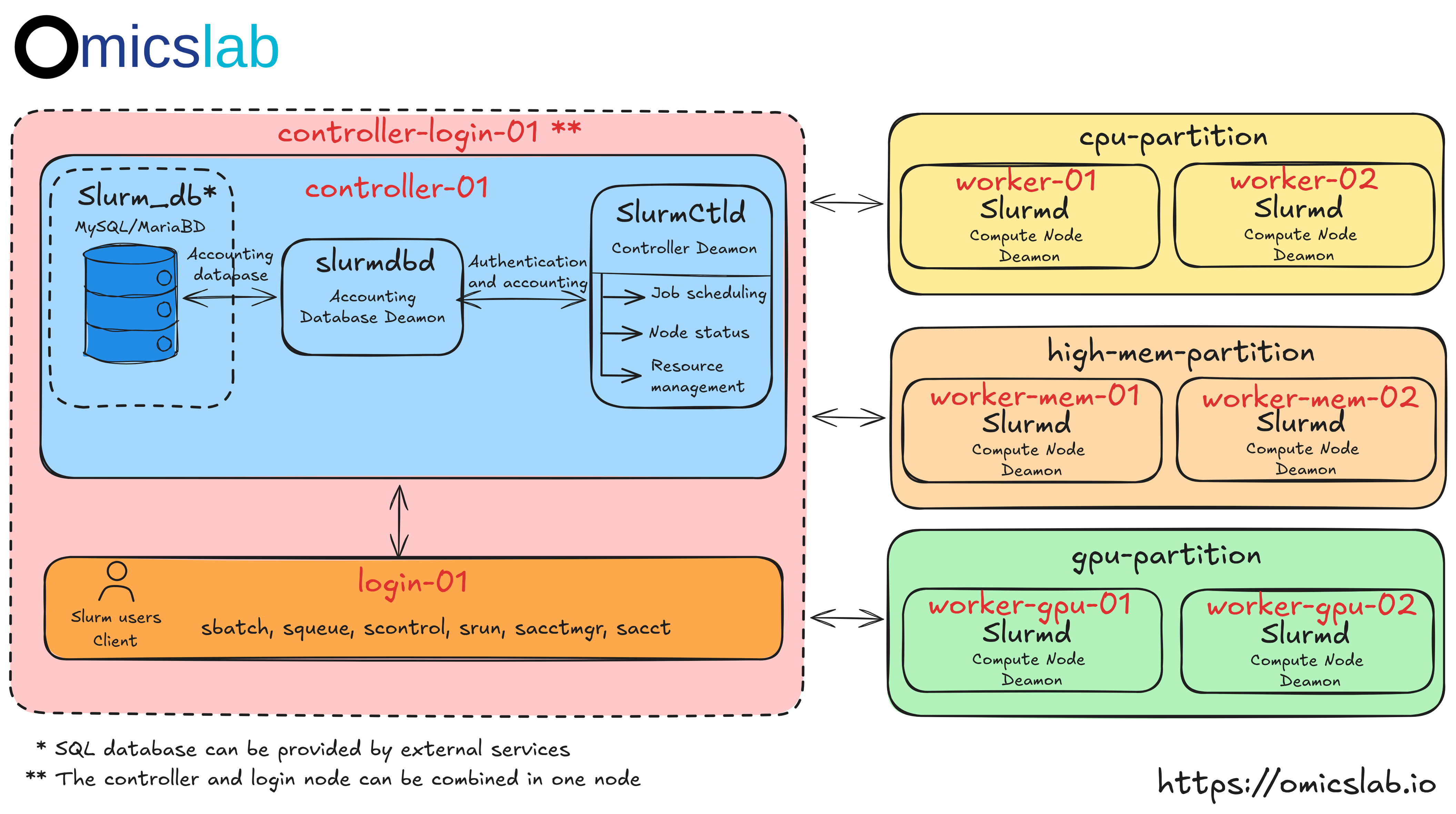
Hình 1: Kiến trúc chuẩn của một cụm Slurm đa node
Hình 1 ở trên cho thấy cách nhiều node có thể được thiết lập chỉ liên quan đến kiến trúc cụm Slurm. Tuy nhiên, trong production thực tế, có một số bước bổ sung cần thiết cho các dịch vụ bioinformatics, bao gồm: Lưu trữ chia sẻ và Giám sát. Nội dung sẽ được giải thích chi tiết hơn như bên dưới
Hệ thống lưu trữ chia sẻ
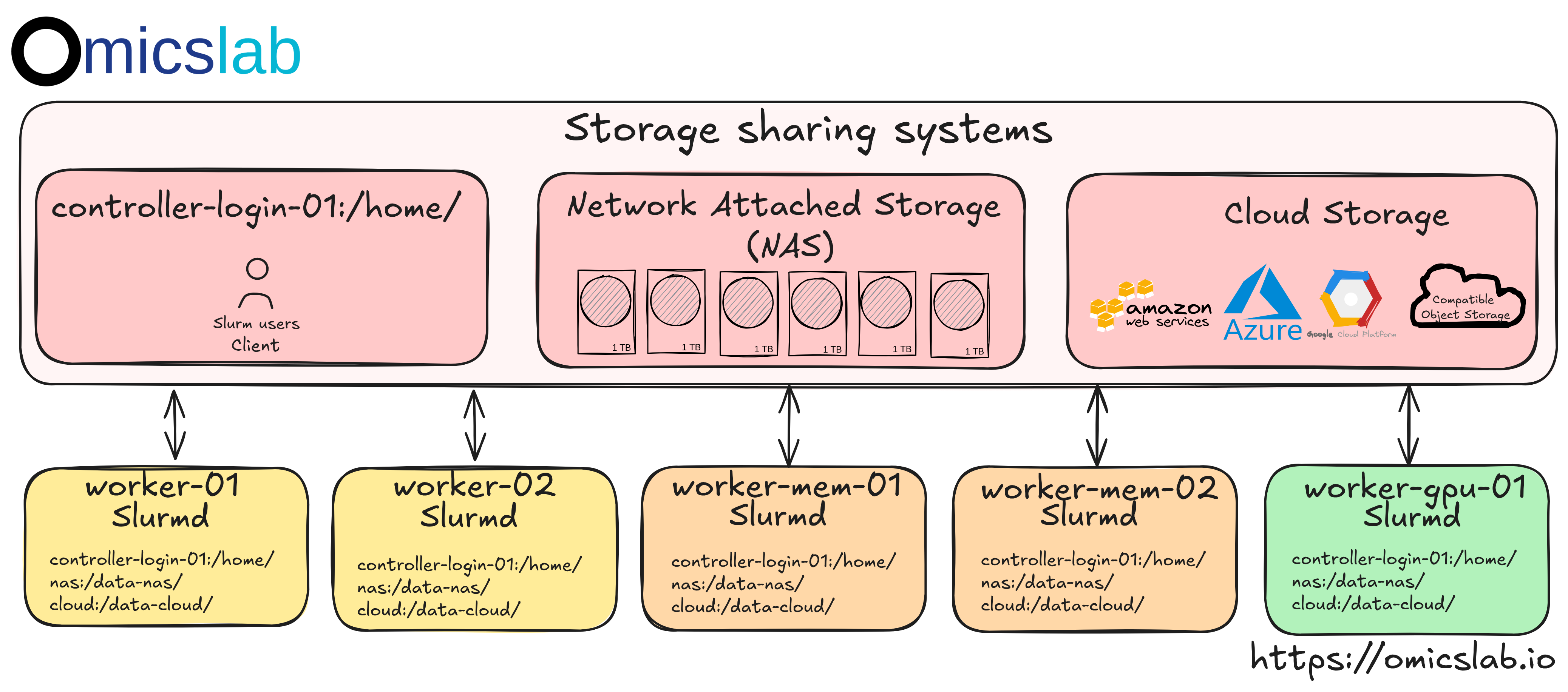
Hình 2: Hệ thống lưu trữ chia sẻ chuẩn giữa nhiều node
Tại sao chúng ta cần hệ thống lưu trữ chia sẻ? Ý tưởng đơn giản là khi chúng ta chạy một job trên worker, nó cần truy cập dữ liệu. Sau đó, khi chúng ta ngừng làm việc hoặc yêu cầu một hệ thống tài nguyên cao hơn, chúng ta vẫn có thể truy cập dữ liệu. Trong các tác vụ nâng cao, chúng ta cần phân tích trên nhiều compute node, chúng ta cần dữ liệu thô, các tệp trung gian có thể được chia sẻ và lưu trữ để phân tích trên nhiều máy.
Thông thường, thiết lập chuẩn có thể được biểu diễn như trong Hình 2, với:
- Network File System (NFS): Với Local Area Network (LAN) cùng các router mạng tốc độ cao giữa các node, nó có thể được cấu hình để chia sẻ các thư mục cụ thể từ một máy đến nhiều node. Nó thường được cấu hình
trên controller node, nơi nó chia sẻ thư mục
HOME, sau đó thư mục home của người dùng bạn sẽ khả dụng trên các node đích. - Network Attached Storage (NAS) (Tùy chọn): Tương tự NFS, nó có thể được cấu hình để chia sẻ tệp. Thông thường, chúng được cấu hình bằng một thiết bị riêng có phần mềm NAS liên quan để quản lý và giám sát. Cuối cùng, nó có thể được chia sẻ qua mạng công cộng. Nó cũng có thể đảm bảo khả năng truy cập đọc/ghi cao giữa các node và đảm bảo sao lưu dữ liệu bằng nhiều bản sao dữ liệu. Tuy nhiên, chi phí vận hành NAS có thể được cân nhắc khi người dùng có thể dùng trực tiếp cloud storage. Họ có thể tải dữ liệu thô về NFS trước, tải các tệp cần thiết lên cloud khi hoàn tất
- Cloud storage: Mặc dù HPC được thiết kế để dùng cục bộ, việc dùng cloud storage là cần thiết khi người dùng có thể lưu trữ dữ liệu. Trong bioinformatics, có một điểm khá đặc biệt là dữ liệu có thể được tái sử dụng để khai thác thông tin mới khi các công cụ mới được phát triển. Trong khi HPC mạnh về tính toán để khảo sát, thì sau này, việc cấu hình cloud computing có thể được dùng để tối ưu chi phí production.
Stack giám sát
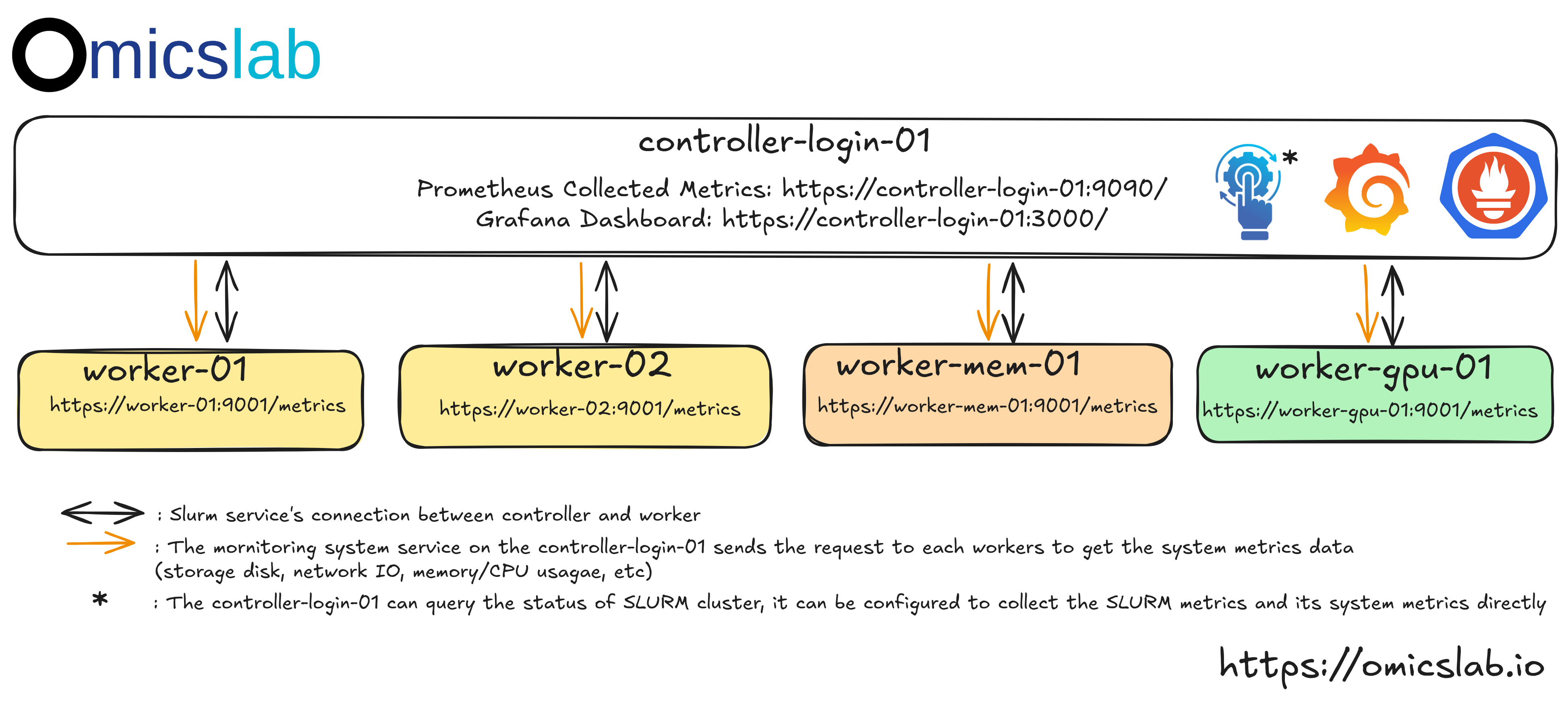
Hình 3: Hệ thống giám sát được thiết kế cho nhiều node để thu thập các chỉ số hệ thống và Slurm
Với vai trò quản trị viên của HPC, bạn không nên đăng nhập vào HPC rồi kiểm tra trạng thái của cụm. Theo Hình 3, thông thường, với HPC, quản trị viên sẽ:
- Giám sát hệ thống: Đơn giản là kiểm tra xem người dùng có thể sử dụng HPC một cách hiệu quả và tối ưu hay không. Có thể kiểm tra đơn giản qua mức sử dụng disk, memory và cpu. Nếu disk đầy, đó có thể là tín hiệu để tăng
kích thước node HPC. Nếu phân tích không thể được tối ưu, đã đến lúc nâng cấp hệ thống. Nó có thể phát hiện người dùng có dùng HPC đúng cách hay không. Ví dụ, chạy pipeline bioinformatics với Nextflow có thể dùng với
executor=slurmnó sẽ giúp tự động submit và giám sát các tác vụ, trong khi submit một job đơn với tài nguyên tính toán cao và chạy pipeline vớiexecutor=localsẽ lãng phí tài nguyên khi một vài bước không cần quá nhiều tài nguyên mà lại tốn thời gian chạy. - Giám sát Slurm: Nếu các node luôn bận (>80%) và dự kiến sẽ dùng nhiều hơn, có thể cân nhắc nâng cấp HPC. Đặc biệt, quản trị viên có thể khuyến khích và hướng dẫn người dùng submit job vào ban đêm cho các tác vụ lớn, khi vào thời điểm đó không có nhiều người dùng
Các chỉ số có thể được thu thập như thế nào:
- Chỉ số hệ thống: Có thể được cấu hình qua
promethus-node-exportertrên mỗi node, nó thu thập các chỉ số hệ thống và expose dưới dạng web api service tạihttps://<node name>:3000. Sau đó, head node có thể gửi request để thu thập các chỉ số này. - Chỉ số Slurm: Có thể được cấu hình qua
promethus-slurm-exportertrên node trong cụm Slurm. Nó thường là controller node. - Chỉ số thu thập và dashboard: Sau đó
prometheussẽ thu thập các chỉ số này và có thể là nguồn choGrafanavới dashboard được cấu hình để phân tích tương tác
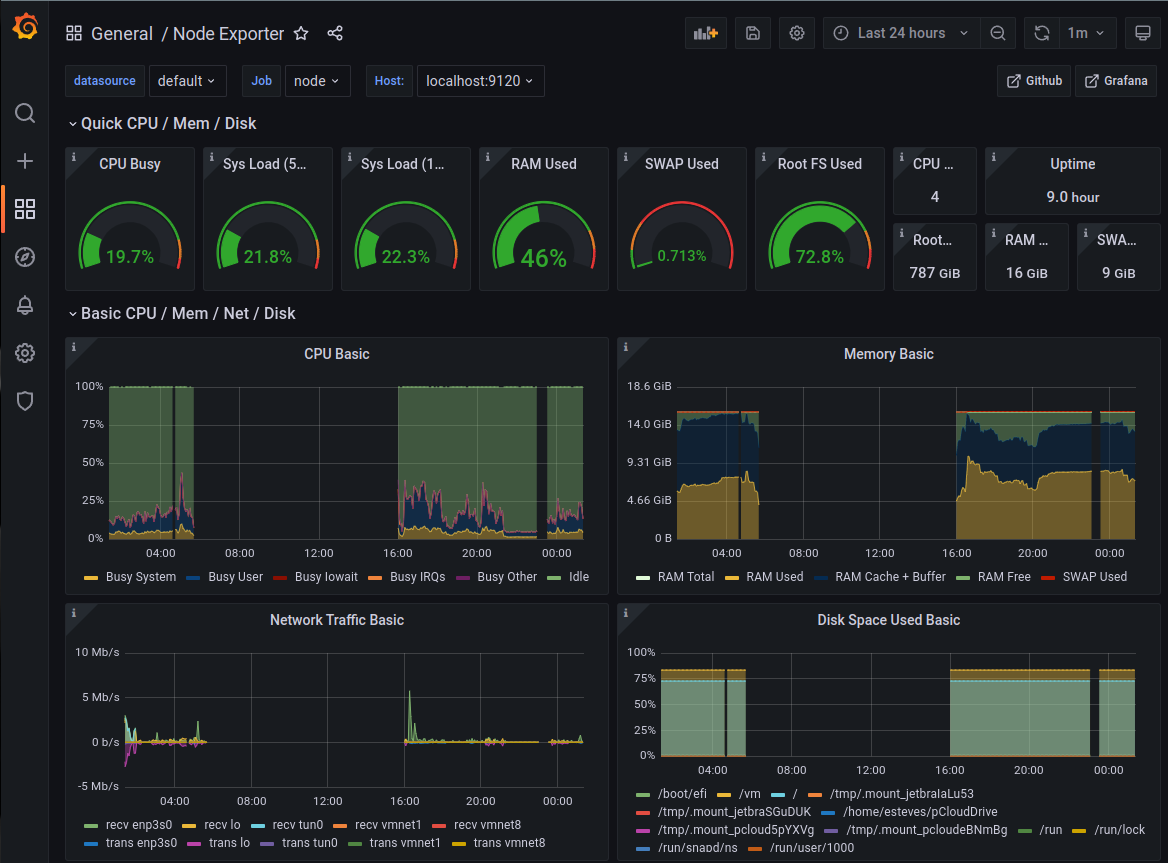
- Prometheus: Cơ sở dữ liệu chỉ số chuỗi thời gian
- Grafana: Dashboard đẹp mắt để trực quan hóa
- Alertmanager: Gửi cảnh báo đến Slack khi có sự cố
- Node Exporter: Các chỉ số cấp hệ thống (CPU, memory, disk)
- Slurm Exporter: Các chỉ số đặc thù của Slurm (job, partition, node)
Hệ thống cảnh báo
HPC không phải lúc nào cũng hoạt động đúng. Nếu một worker không hoạt động, quản trị viên nên nhận thông báo càng sớm càng tốt thay vì chờ người dùng báo sự cố. Vì vậy, prometheus có thể
được tích hợp với alertmanager. Đơn giản, chúng ta có thể cấu hình quy tắc: Nếu chỉ số hệ thống không thể thu thập từ một node, nó không phản hồi, thì nên đánh dấu là node down và dứt khoát gửi tin nhắn cảnh báo đến
ứng dụng chat. Có thể là Slack hoặc Zalo (khu vực Việt Nam) để nhanh chóng khắc phục sự cố.
Mở rộng lên HPC nhiều node
Có thể được thực hiện từng bước, qua:
- Bước 1: Clone repo
- Bước 2: Cài đặt Ansible - công cụ sẽ kết nối và chạy lệnh command line để thiết lập trên máy từ xa (các node)
- Bước 3: Tạo ứng dụng Slack có API để
Promethus, khi nó thấy điều kiệnhealthybị thất bại, sẽ gọi API để cảnh báo quản trị viên và người dùng - Bước 4: Kết nối máy của bạn để có thể kết nối với các node, tạo
inventorieslưu thông tin về cách máy bạn có thể kết nối và thiết lập trên các node, quyết định node nào nên được cấu hình làm controller, login, worker để cài các dịch vụ tương ứng. - Bước 5: Giờ bạn có thể xây dựng cụm, dùng Ansible, đọc tệp
inventoriesvà cài đặt/cấu hình phần mềm trên máy từ xa một cách tự động thay vì đăng nhập thủ công vào từng node và cài phần mềm - Bước 6: Giờ cụm đã sẵn sàng chạy, bạn cần thêm người dùng khớp đúng với các Linux user trên các node để có quyền hạn phù hợp làm việc trên cụm.
- Bước 7: Dùng Slurm user đã tạo, xác minh cụm có thể submit job và chạy phân tích đơn giản
- Bước 8: Kiểm tra lại dashboard để thấy chỉ số hệ thống của từng node và chỉ số Slurm HPC được Grafana trực quan hóa
Điều kiện tiên quyết
- Nhiều máy Ubuntu 20.04 hoặc 24.04 (hoặc VM)
- Quyền truy cập SSH đến tất cả các node
- Quyền sudo trên tất cả các node
- Một Slack workspace (để nhận cảnh báo)
Bước 1: Clone Repository
git clone https://github.com/vieomics/omicslab-hpc -b 1.0.0cd omicslab-hpcBước 2: Cài đặt Ansible và các dependency
# pixi is similar to conda# install piximake ${HOME}/.pixi/bin/pixi
# activate environmentpixi shell
# install dependencies, start up example instances with cluster os, support multiple version# bash scripts/setup.sh 22.04# bash scripts/setup.sh 20.04bash scripts/setup.sh 24.04# ormake vm-startScript này cài đặt:
- Các collection Community Ansible
- Các Galaxy role (geerlingguy.docker, v.v.)
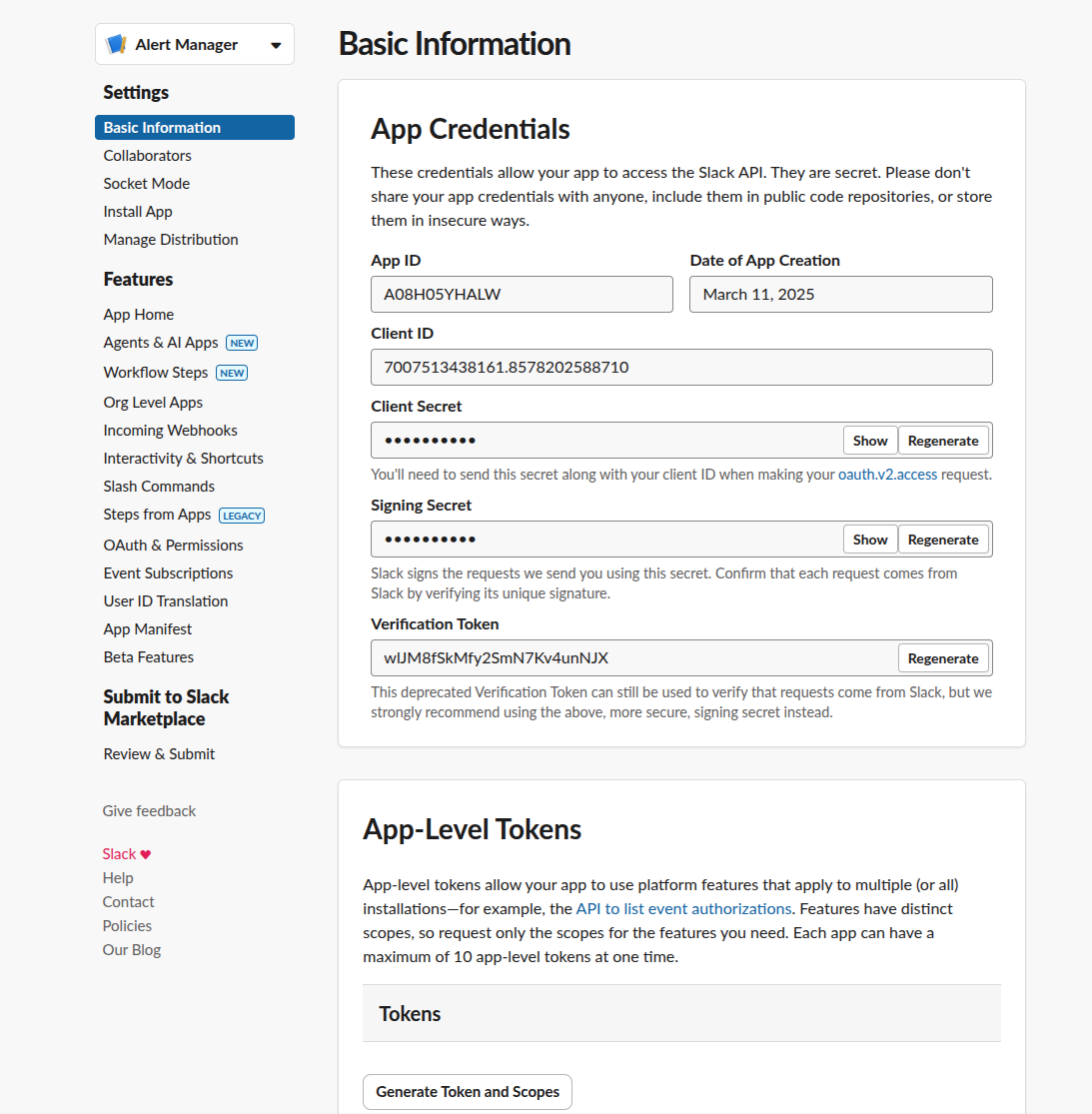
Bước 3: Thiết lập cảnh báo Slack
- Với
alertmanager, Slack được dùng mặc định. Liên hệ với chúng tôi tạicontact@omicslab.iođể được cung cấp giải pháp tùy chỉnh nếu bạn muốn dùng giải pháp khác (Zalo, Discord, v.v.)
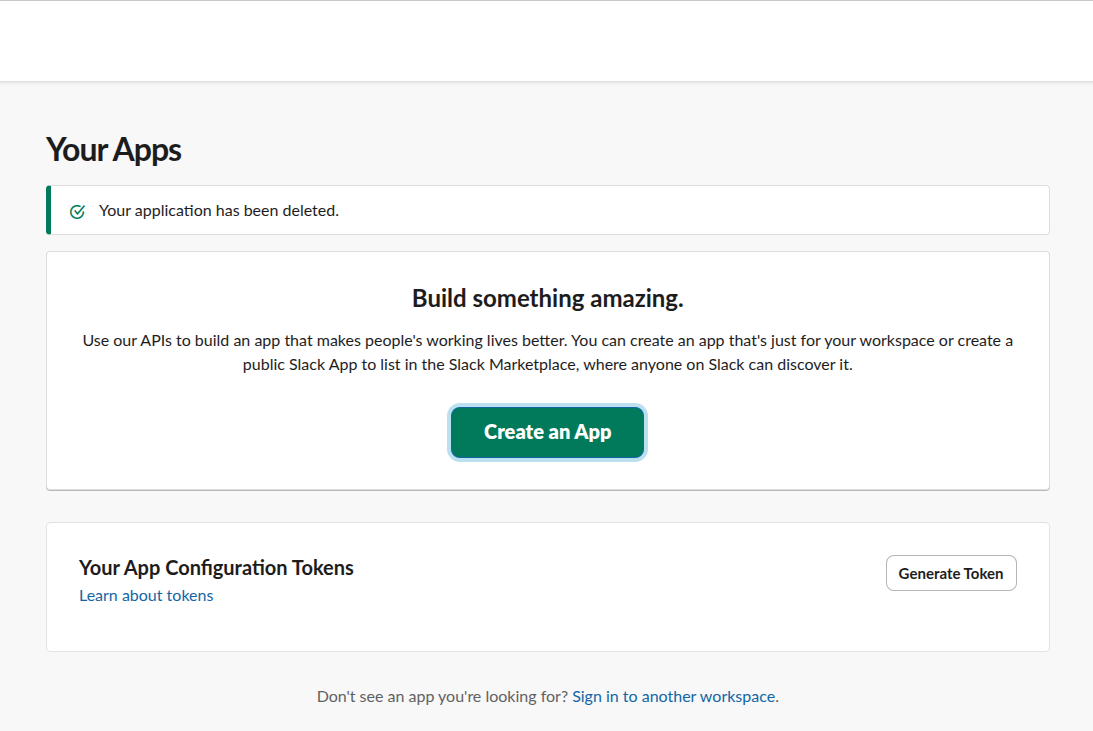
Tạo một Slack App
- Truy cập Slack API và tạo một ứng dụng mới
- Chọn "From scratch"
- Đặt tên cho nó (ví dụ: "Slurm Cluster Monitor")
- Chọn workspace của bạn
Bật Incoming Webhooks
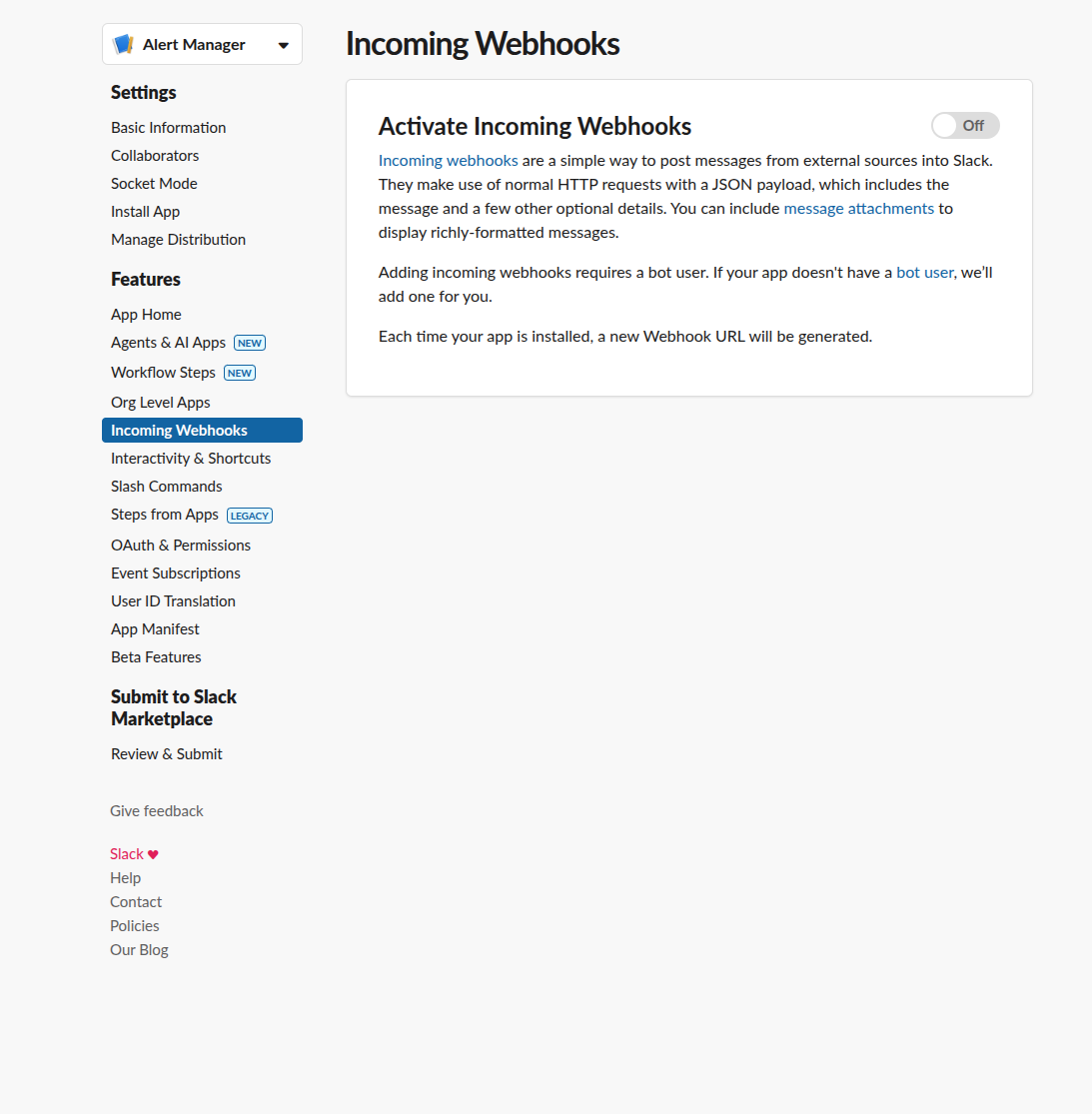
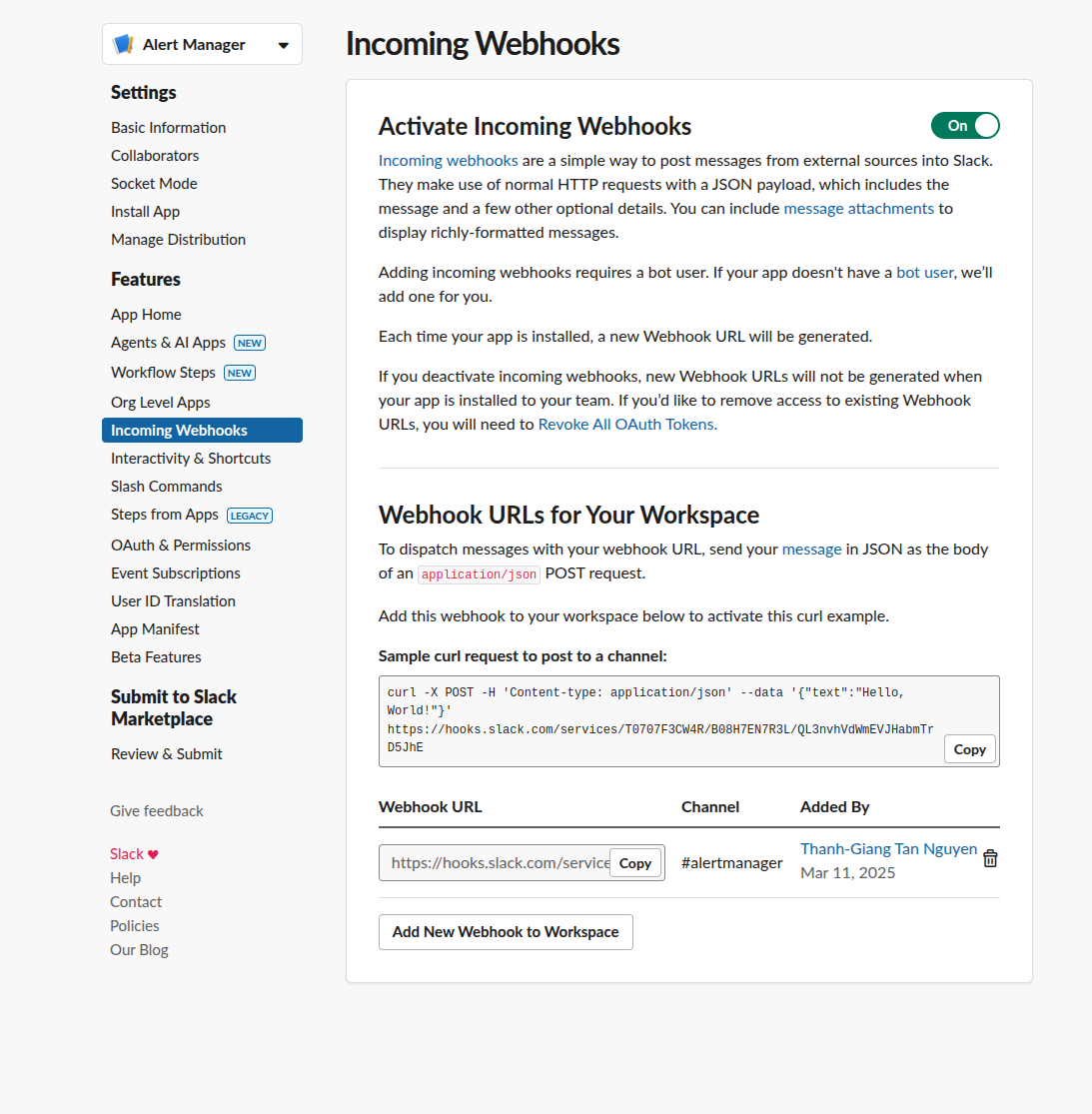
- Điều hướng đến "Incoming Webhooks" trong cài đặt ứng dụng của bạn
- Kích hoạt incoming webhooks
- Nhấn "Add New Webhook to Workspace"
- Chọn kênh nhận thông báo (ví dụ:
#cluster-alerts) - Sao chép URL webhook
Kiểm tra Webhook thủ công
curl -X POST -H 'Content-type: application/json' \ --data '{"text":"Hello from Slurm cluster!"}' \ https://hooks.slack.com/services/YOUR/WEBHOOK/URLBạn sẽ thấy tin nhắn xuất hiện trong kênh Slack của mình!
Bước 4: Cấu hình Inventory của bạn
Tạo inventories/hosts (hoặc sao chép từ inventories/hosts.example):
[slurm_master]controller-01 ansible_host=192.168.58.10
[slurm_worker]worker-01 ansible_host=192.168.58.11worker-02 ansible_host=192.168.58.12
[slurm:children]slurm_masterslurm_worker
\[all:vars] # remove the backflash that html turbopack failed to render as code blockansible_user=your_usernameslurm_password=secure_munge_passwordslurm_account_db_pass=secure_db_passwordslack_api_url=https://hooks.slack.com/services/YOUR/WEBHOOK/URLslack_channel=#cluster-alertsadmin_user=adminadmin_password=secure_grafana_passwordDùng Ansible Vault để mã hóa các biến nhạy cảm như mật khẩu và API key.
# create encrypted vault, add your vault password, content, then exit with vim key :wqansible-vault create inventories/hosts.prod
# edit exisiting files, add your vault password to work directly insideansible-vault edit inventories/hosts.prodCác tham số tùy chọn
default_password=temporary_user_password # Forces change on first loginusers=alice,bob,charlie # Comma-separated listBước 5: Triển khai cụm
Giờ đến khoảnh khắc kỳ diệu - triển khai toàn bộ cụm của bạn bằng một lệnh duy nhất!
# If you have passwordless sudo configuredansible-playbook -i inventories/hosts cluster_slurm.yml
# If you need to enter sudo passwordansible-playbook -i inventories/hosts cluster_slurm.yml --ask-become-pass --ask-vault-passPlaybook này làm gì:
- Chuẩn bị tất cả các node:
- Cập nhật package
- Cài đặt dependency
- Cấu hình firewall
- Thiết lập controller:
- Cài đặt slurmctld và slurmdbd
- Cấu hình MariaDB cho accounting
- Thiết lập NFS server
- Cài đặt stack giám sát
- Cấu hình các compute node:
- Cài đặt slurmd
- Mount các NFS share
- Cấu hình các metrics exporter
- Triển khai giám sát:
- Prometheus để thu thập chỉ số
- Grafana với dashboard cấu hình sẵn
- Alertmanager tích hợp Slack
- Đồng bộ cấu hình:
- Sao chép slurm.conf đến tất cả các node
- Thiết lập xác thực Munge
- Cấu hình log aggregation
Bước 6: Thêm người dùng
ansible-playbook -i inventories/hosts cluster_account.ymlViệc này tạo Linux user trên tất cả các node với:
- UID/GID đồng bộ trên các node
- Thư mục home trên NFS chia sẻ
- Các liên kết accounting của Slurm
Với production, hãy cân nhắc tích hợp với LDAP hoặc Active Directory. Tuy nhiên, việc thiết lập NIS và LDAP có thể phức tạp trên Ubuntu. Cách tiếp cận Ansible của chúng tôi cung cấp một giải pháp thay thế đơn giản hơn, hoạt động tốt cho các cụm nhỏ đến trung bình.
Bước 7: Xác minh thiết lập
SSH vào controller node và chạy:
# Check cluster statussinfo
# Expected output:# PARTITION AVAIL TIMELIMIT NODES STATE NODELIST# compute* up infinite 2 idle worker-01,worker-02
# View job queuesqueue
# Submit a test jobsrun --nodes=1 --ntasks=1 hostname
# Check accountingsacct
# View cluster configurationscontrol show config | head -20Bước 8: Truy cập dashboard Grafana
Grafana chạy trên controller node ở cổng 3000. Để truy cập nó một cách an toàn từ máy cục bộ của bạn:
# Create SSH tunnelssh -N -L 3001:localhost:3000 your_user@controller_ip
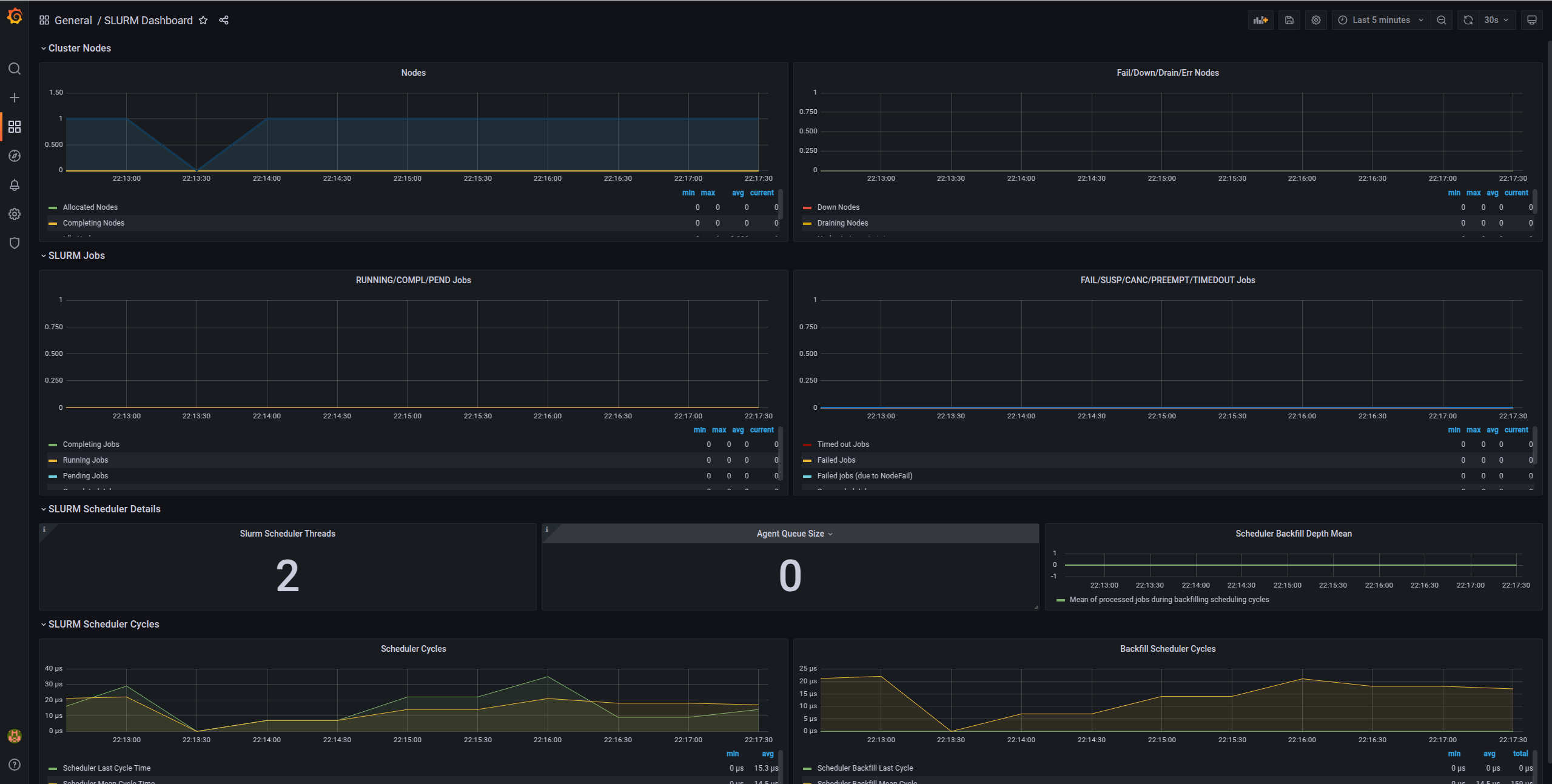
# Now open in browser: http://localhost:3001# Login: admin / your_grafana_passwordBạn sẽ thấy các dashboard cấu hình sẵn hiển thị:
Dashboard chỉ số node
- Mức sử dụng CPU trên mỗi node
- Mức sử dụng memory
- Disk I/O
- Lưu lượng mạng
- Tải hệ thống
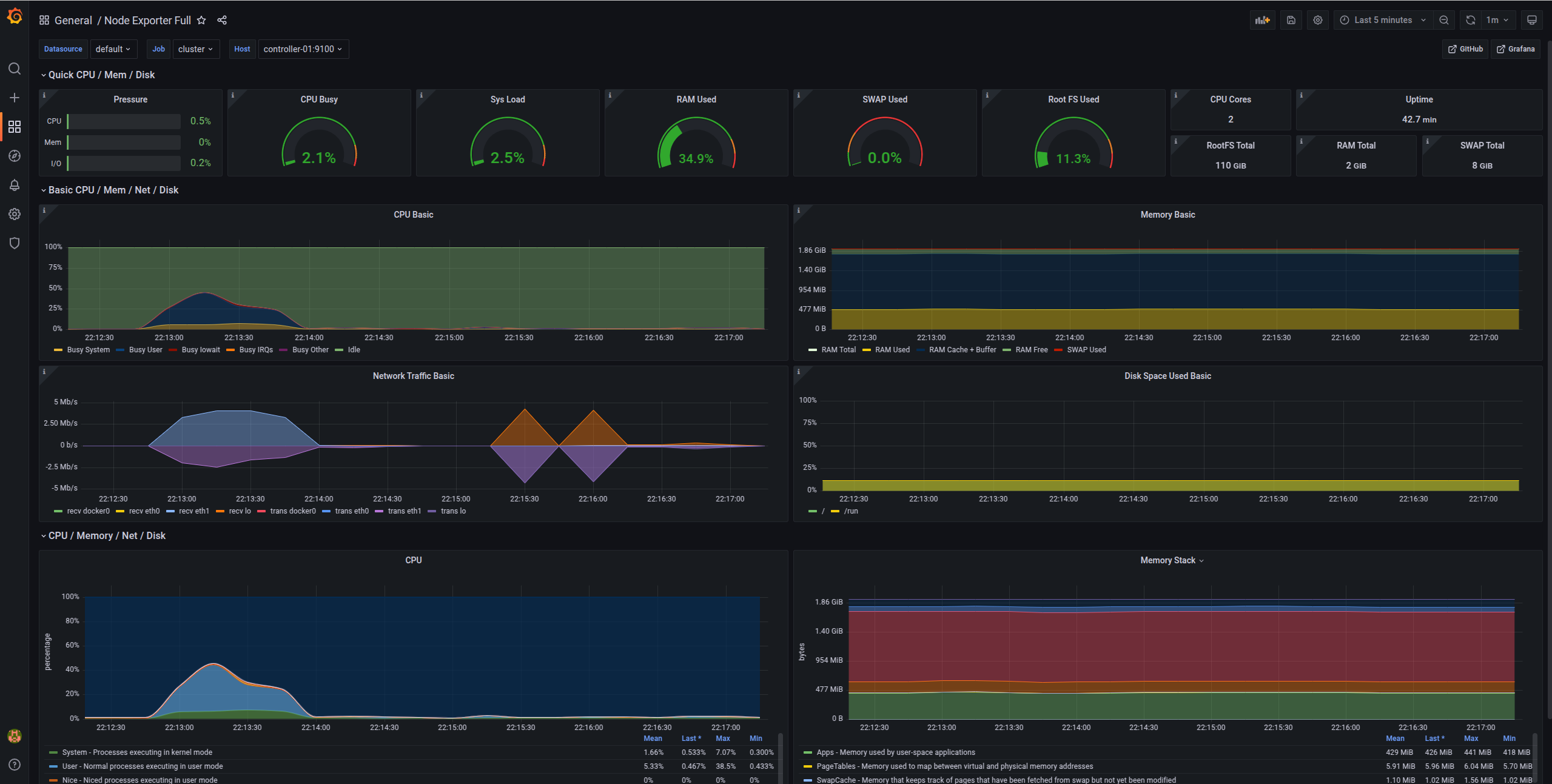
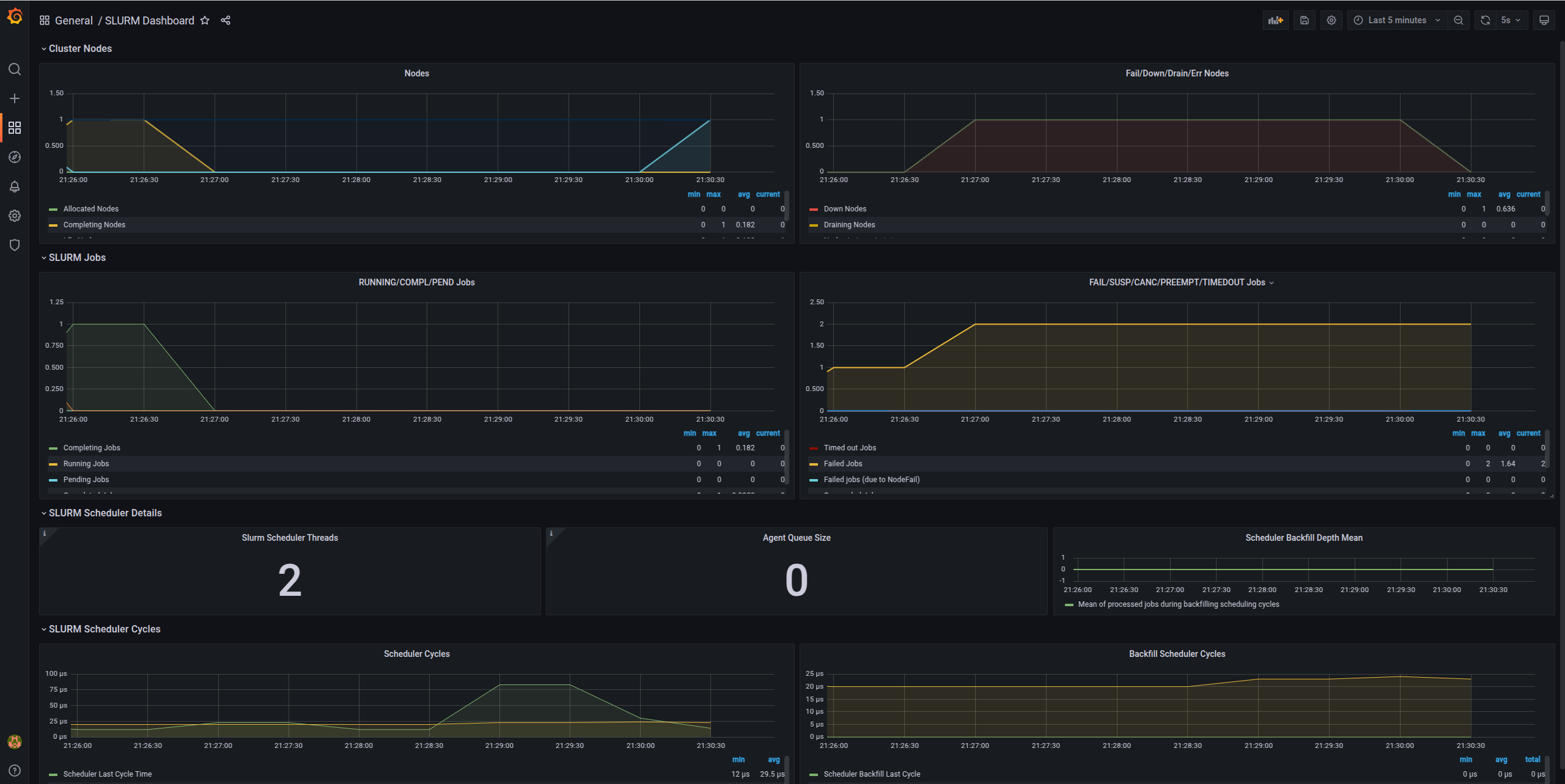
Dashboard chỉ số Slurm
- Các job đang hoạt động
- Độ dài hàng đợi job
- Trạng thái node (idle, allocated, down)
- Phân bổ CPU
- Mức sử dụng memory
- Tỷ lệ hoàn thành job
Còn cảnh báo thì sao?
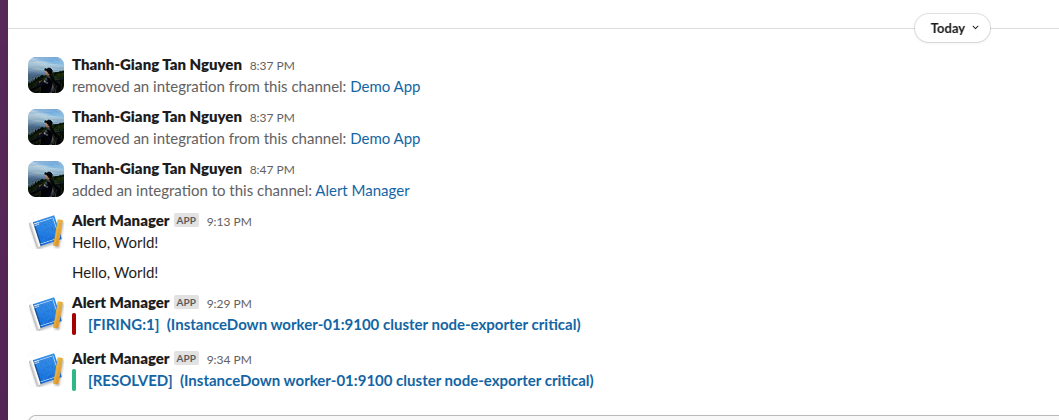
Alertmanager được cấu hình để gửi thông báo Slack cho:
- Node down: Khi một compute node trở nên không phản hồi
- Node resumed: Khi một node trở lại online
- Mức sử dụng CPU cao: CPU cao kéo dài trên toàn cụm
- Mức sử dụng memory cao: Cảnh báo áp lực bộ nhớ
- Disk space thấp: Dung lượng lưu trữ sắp cạn
Ví dụ cảnh báo trong Slack khi một node down:
Để biết thông tin chi tiết, hãy xem dashboard Grafana:
Kiểm thử cụm của bạn
Hãy chạy một số bài kiểm thử để đảm bảo mọi thứ hoạt động:
Kiểm thử 1: Job đơn giản
srun hostnameKiểm thử 2: Job đa node
srun --nodes=2 --ntasks=2 hostnameKiểm thử 3: Phiên tương tác
srun --nodes=1 --cpus-per-task=2 --mem=2G --pty bash
# Inside the sessionhostnamenprocfree -hexitKiểm thử 4: Batch job
Tạo test_job.sh:
#!/bin/bash#SBATCH --job-name=test#SBATCH --output=test_%j.out#SBATCH --error=test_%j.err#SBATCH --nodes=1#SBATCH --ntasks=1#SBATCH --cpus-per-task=2#SBATCH --mem=1G#SBATCH --time=00:05:00
echo "Job started at $(date)"echo "Running on node: $(hostname)"echo "CPUs allocated: $SLURM_CPUS_PER_TASK"echo "Memory allocated: $SLURM_MEM_PER_NODE MB"
# Do some worksleep 60
echo "Job finished at $(date)"Submit nó:
sbatch test_job.sh
# Check statussqueue
# When done, view outputcat test_*.outKiểm thử 5: Giới hạn tài nguyên
# Submit job requesting more resources than availablesrun --mem=999999 --pty bash
# Should fail with:# srun: error: Unable to allocate resources: Requested node configuration is not availableKiểm thử 6: Accounting
# View your jobssacct
# Detailed accounting infosacct --format=JobID,JobName,User,State,Start,End,Elapsed,CPUTime,MaxRSS
# Cluster usage summarysreport cluster utilizationNhững điểm chính
Trong bài viết này, chúng ta đã đề cập:
- Tại sao cần tự động hóa: Lợi ích của việc dùng Ansible để quản lý cụm
- Kiến trúc production: Thiết lập đa node với giám sát và cảnh báo
- Tích hợp Slack: Giám sát chủ động với thông báo
- Triển khai tự động: Một lệnh để triển khai toàn bộ cụm
- Xác minh: Kiểm thử cụm của bạn một cách kỹ lưỡng
Trong Phần 3, chúng ta sẽ đề cập các tác vụ quản trị hằng ngày, khắc phục sự cố, best practice về bảo mật và quản lý tài nguyên nâng cao.
Tài liệu tham khảo
1.Slurm Overview — Tài liệu chính thức cho Slurm workload manager
2.NVIDIA/deepops — Bộ công cụ triển khai cụm mã nguồn mở (giấy phép BSD-3-Clause)
3.elasticluster — Công cụ cung cấp cụm đàn hồi (giấy phép GPL-3.0)
4.Ansible- Ansible cho IT Automation DevOps
5.GitHub Repository-Omicslab HPC- Các script Ansible để thiết lập Slurm HPC
Đây là Phần 2 của chuỗi Omicslab về xây dựng cụm Slurm HPC. Tiếp tục đến Phần 3 để tìm hiểu về quản trị và các best practice.
Bài viết gần đây

28 tháng 09, 2026
Hướng dẫn xây dựng bộ genome vi khuẩn không cần lập trình




4 tháng 05, 2026
Pipeline phân tích methyl hóa từ dữ liệu đọc ngắn với Nextflow
3 tháng 05, 2026